Extract and organize invoice data automatically
Convert invoice photos, PDFs, and scanned invoices into structured rows you can review, correct, and export.

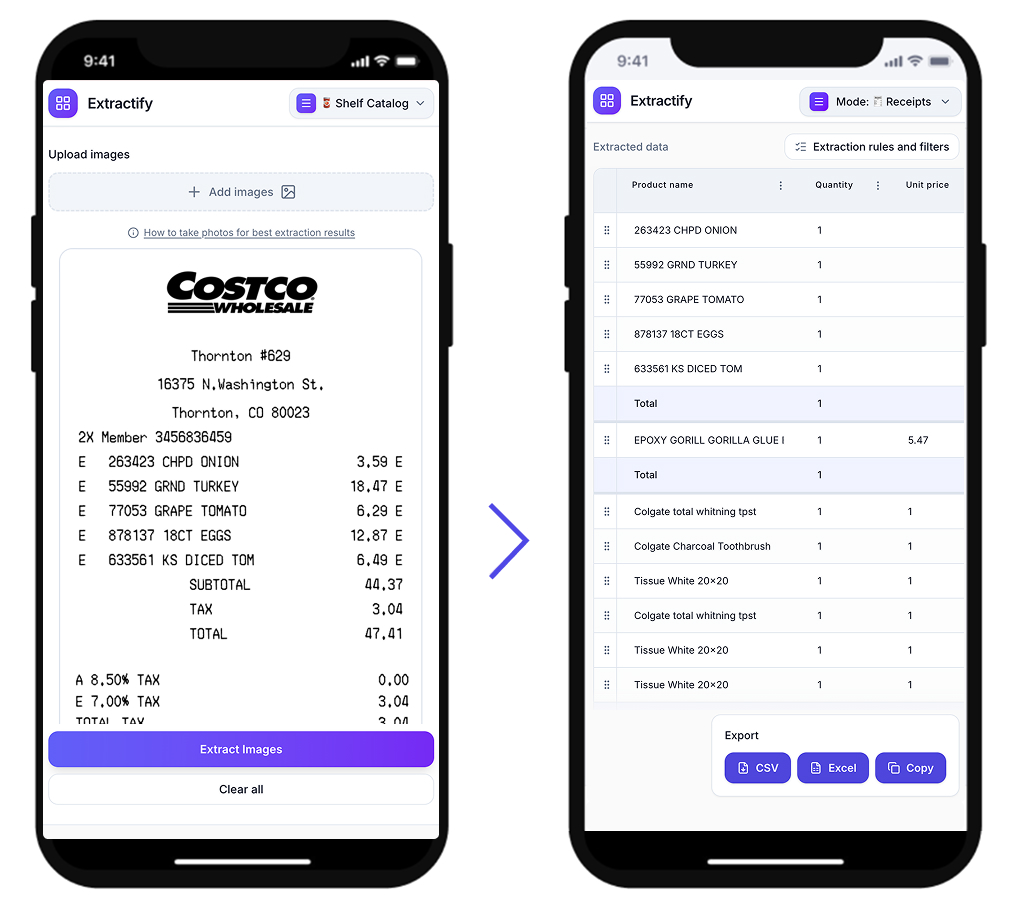
Turn invoice images into structured data
- Extract vendor, invoice number, issue date, and due date
- Capture line items, quantities, unit prices, taxes, and totals
- Upload multiple invoice images in one batch
- Review and edit extracted fields before export
- Export invoice tables to Excel in seconds
Use it for bookkeeping prep, AP workflows, and invoice reconciliation.

How to extract invoice data
- 🧾Step 1
Upload one or more invoice photos or scanned files
- 🔎Step 2
Extractify detects invoice fields and line items automatically
- ✍️Step 3
Review and correct values such as totals, tax, and due dates
- 📥Step 4
Export the final invoice table to Excel
Who uses invoice extraction?
Accounting and bookkeeping teams · Finance and operations managers · Small business owners · Freelancers and agencies · Back-office admin teams
Invoice data is often trapped in PDFs, scans, or phone photos. Manual copy-paste slows down reporting and introduces errors.
This workflow turns invoice images into editable spreadsheet rows so teams can validate faster and export clean data.

FAQ
What invoice data can Extractify extract?
Extractify can automatically capture invoice numbers, vendor names, invoice and due dates, line-item descriptions, quantities, unit prices, tax amounts, subtotals, totals, and other relevant fields found on your invoices.
Can I convert invoices directly to Excel?
Yes. Upload your invoice images or PDFs, review the extracted data in an editable table, then export it to Excel for accounting, reporting, or further processing.
Can Extractify process PDF invoices and scanned invoices?
Yes. Extractify works with PDF invoices, scanned documents, screenshots, and photos of paper invoices. You can upload mixed file types in the same batch.
Can I extract data from multiple invoices at once?
Yes. You can bulk upload multiple invoices and Extractify will combine the extracted information into a structured table, making it much faster than entering each invoice manually.
Do I need to define the invoice fields manually?
No. By default, Extractify automatically detects the relevant fields and creates the columns for you. You can also choose specific fields when you need a particular output format.
Can Extractify extract invoice line items?
Yes. Extractify can detect individual line items such as product or service descriptions, quantities, unit prices, and amounts instead of only extracting the invoice-level information.
Can I correct the extracted invoice data?
Yes. The results are displayed in an editable table, so you can quickly review, correct, add, or remove values before exporting your data.
Does Extractify work with invoices from different suppliers and layouts?
Yes. You do not need to create a separate template for every supplier. Extractify is designed to identify invoice information across different document layouts and formats.
Is this the same as traditional invoice OCR?
Not exactly. Traditional OCR mainly converts text in an invoice into machine-readable text. Extractify goes further by identifying the meaning of that information and organizing it into structured rows and columns.
What can I use the extracted invoice data for?
You can use it for bookkeeping, expense tracking, accounts payable, invoice reconciliation, financial analysis, database imports, or any workflow where invoice information needs to be converted into structured data.