Extract YouTube Channel Data from Screenshots
Get video titles, views, release dates, and other statistics from a YouTube screenshot into a structured spreadsheet.

Tell Extractify what to extract
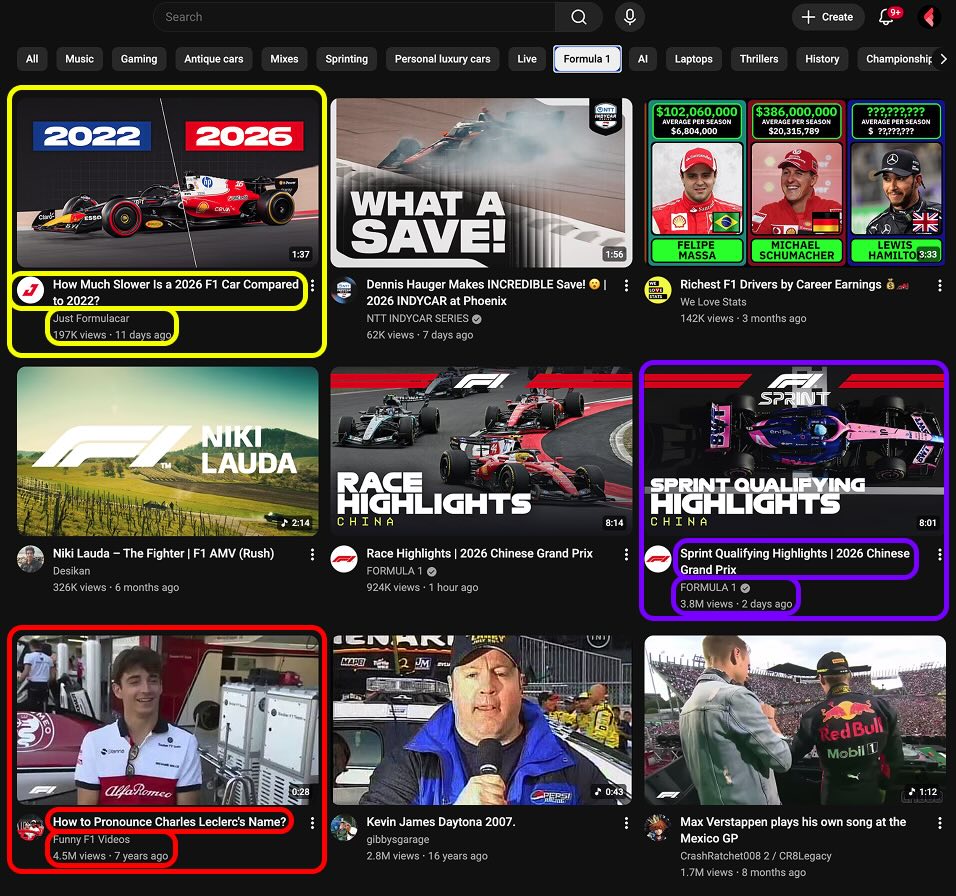
Upload a screenshot or photo of a YouTube channel page and extract:
- Video title
- Views
- Release date
- Duration
- Thumbnail style
- Any other visible field — add a column with the name of your choice
Export to CSV or Excel.
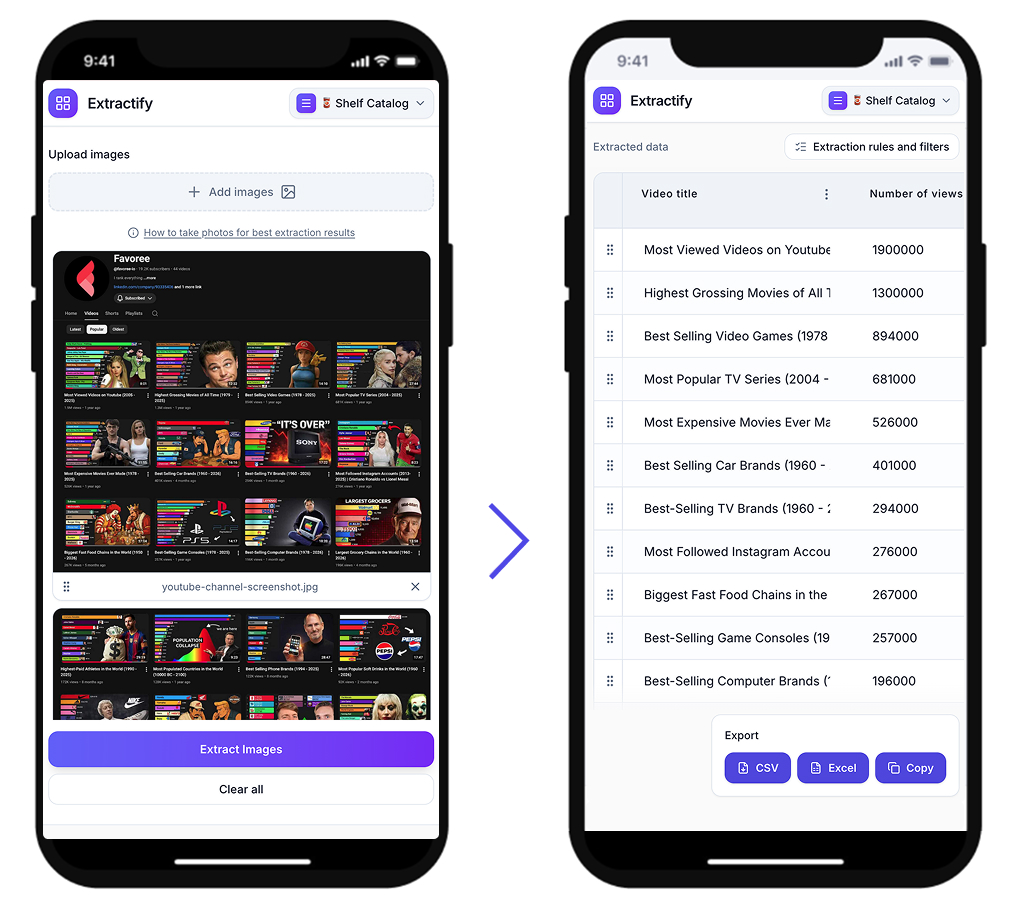
How to extract YouTube channel data
- 📷Step 1
Capture a screenshot or photo of the YouTube channel or homepage
- 🔍Step 2
Extractify reads video titles, views, dates, and other visible stats
- 📊Step 3
Data is organized into a clean spreadsheet
- 📥Step 4
Export to CSV, Excel, or copy directly
Who uses this tool?
Content creators · Channel managers · Analysts · Researchers · Agencies
Tracking video performance across a YouTube channel usually means copying titles, views, and dates by hand into a spreadsheet. For channels with dozens or hundreds of videos, this is slow and error-prone.
Extractify automates this by reading the visible data from a screenshot or photo of the channel page — video titles, view counts, release dates, and more — and turning it into a structured table you can export to CSV or Excel.

FAQ
How do I get YouTube channel statistics into a spreadsheet?
Upload a screenshot or photo of the YouTube channel page to Extractify. The tool extracts visible data — video titles, view counts, release dates, duration, and other statistics — and outputs a structured table you can export to CSV or Excel. No manual copy-pasting required.
Can I extract data from a YouTube channel homepage?
Yes. As long as the channel or homepage is visible in your image (screenshot or photo), Extractify can read the video titles, views, dates, and other on-screen information and turn it into a spreadsheet. You can then add columns for any other fields you want to track.
What YouTube data can I extract?
You can extract any data that is visible on the page: video title, view count, release date, duration, thumbnail style, and similar. Define the columns you need in Extractify before extraction; the AI will fill in what it can see. The resulting table is editable and exportable to CSV or Excel.
Why use a screenshot instead of the YouTube API?
Screenshots or photos are useful when you need a one-off export, don’t want to set up API access, or want to capture exactly what’s on screen (including layout or custom sections). Extractify turns that visual data into a spreadsheet without requiring API keys or coding.