Convert images of tables into editable data
Turn screenshots, JPGs, PNGs, and scanned documents into structured rows you can review and export.

Tell Extractify what to extract
Turn tables from images and PDFs into data
- Detect data tables in photos, screenshots, scans, and PDF files
- Bulk upload multiple images or PDFs at once
- Automatically identify headers, rows, and columns
- Extract text, numbers, prices, dates, and totals
- Review and edit the extracted data before export
Export your structured table to Excel or CSV in seconds.
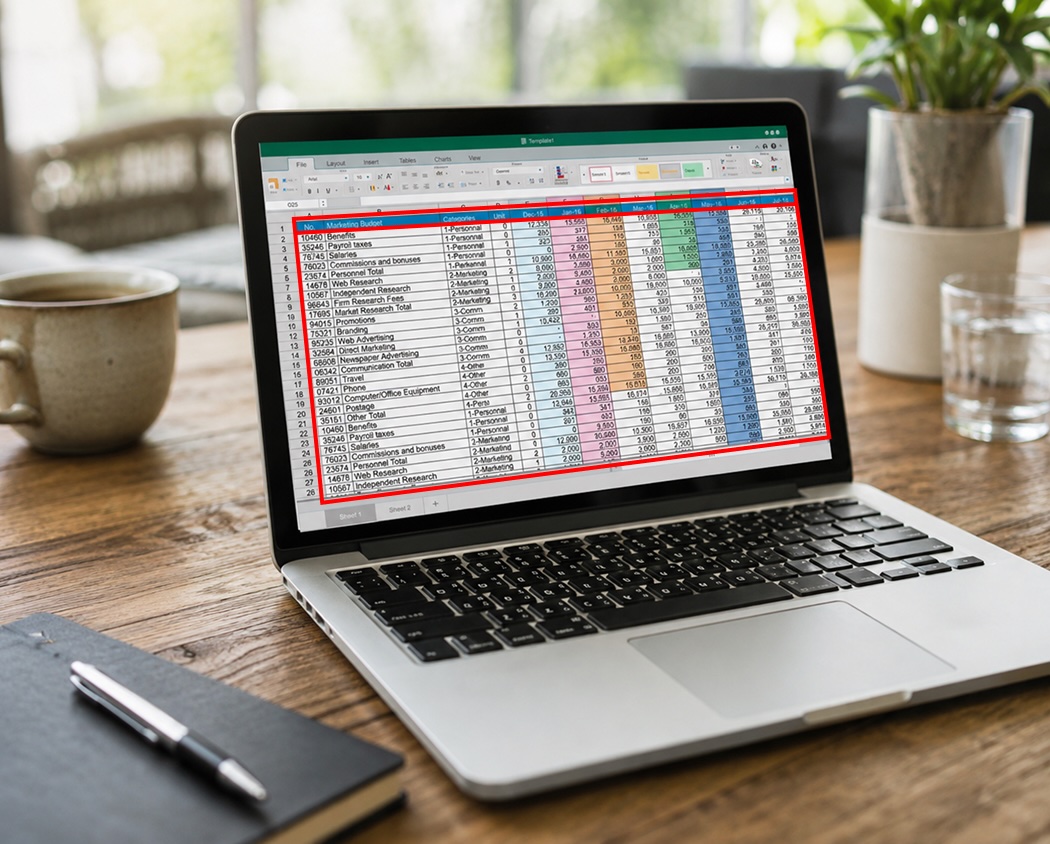
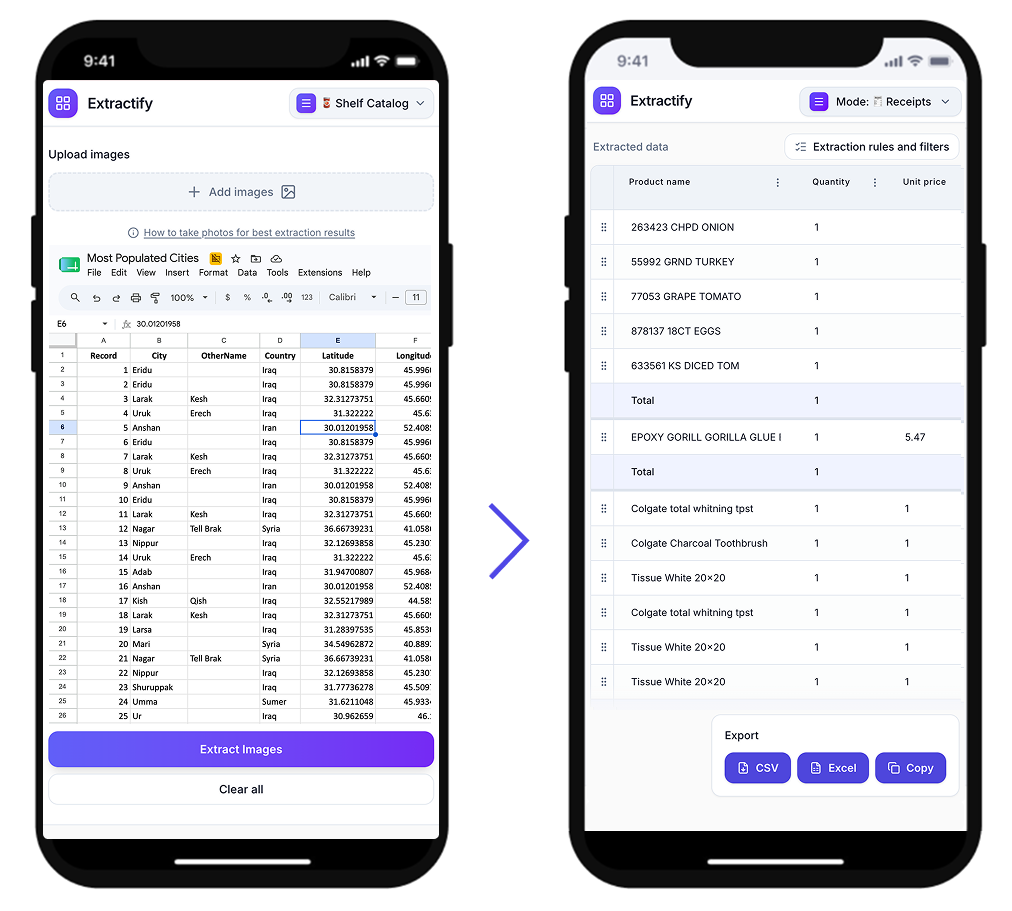
How to convert a table image into spreadsheet data
- 📷Step 1
Upload one or more table screenshots, scans, or photos
- 🔍Step 2
Extractify reads the table structure and values automatically
- 📊Step 3
Review and edit extracted rows and columns
- 📥Step 4
Export to Excel or CSV
Who uses this tool?
Operations teams · Finance teams · Data analysts · Students and researchers · Back-office assistants
People often receive table data as screenshots, photos, or scans and then retype everything manually into spreadsheets. This is slow and error-prone, especially for wide tables.
Extractify helps convert image table to data quickly by extracting visible rows and columns into an editable format.

FAQ
How can I convert an image of a table into Excel?
Upload your image to Extractify. It detects the table’s headers, rows, columns, and cell values, then converts them into editable data that you can export to Excel.
Can Extractify extract tables from JPG and PNG images?
Yes. Extractify can detect tables in JPG and PNG files, including screenshots, scanned documents, and photos of printed tables.
Can I convert an image of a table into CSV?
Yes. After the table has been extracted, you can review and edit the data before downloading it as a CSV or Excel file.
Can Extractify extract a table from a screenshot?
Yes. Paste or upload your screenshot, and Extractify will identify the visible table structure and convert it into editable rows and columns.
Can I extract tables from PDF files?
Yes. You can upload PDFs containing tables, including scanned documents. Extractify reads the visible table data and organizes it into an editable spreadsheet.
Can I process multiple table images at once?
Yes. You can bulk upload multiple images or PDFs and process them in one extraction flow.
Does Extractify detect columns automatically?
Yes. Extractify can automatically identify the table’s columns. You can also specify the exact fields you want to extract when you only need particular information.