How to Extract Data From Images to Excel: 4 Best Methods Explained
How to Convert Images into Excel Data
Every business ends up with the same annoying problem at some point: important data is trapped inside images.
It might be a photo of a retail shelf, a receipt, a warehouse label, a product box, a handwritten list, a spreadsheet screenshot, or even a picture taken quickly on a phone during a store visit.
The information is there, but it is not usable yet. You cannot sort it, filter it, total it, or plug it into a workflow until it is turned into structured data.
And that is where the friction starts.
Most people still solve this in a painfully manual way. They open the image on one side of the screen, open Excel on the other side, and begin copying everything row by row. It works, technically. It is also slow, repetitive, expensive, and full of small mistakes that pile up.
The good news is that extracting data from images to Excel is no longer a weird technical task reserved for specialists. Today, there are several ways to do it, from Excel's built-in features to OCR tools to newer AI-based extraction platforms that can understand more complex images.
McKinsey has argued that current AI and automation technologies can automate work activities that absorb 60 to 70 percent of employees' time today, which is exactly why repetitive data-transfer work is such an obvious target.
The main ways to extract data from images to Excel
There is no single best method for every case. The right method depends on the complexity of the image, the volume of documents, and how accurate the final spreadsheet needs to be.
Method 1: Use Excel's built-in "Data From Picture" feature
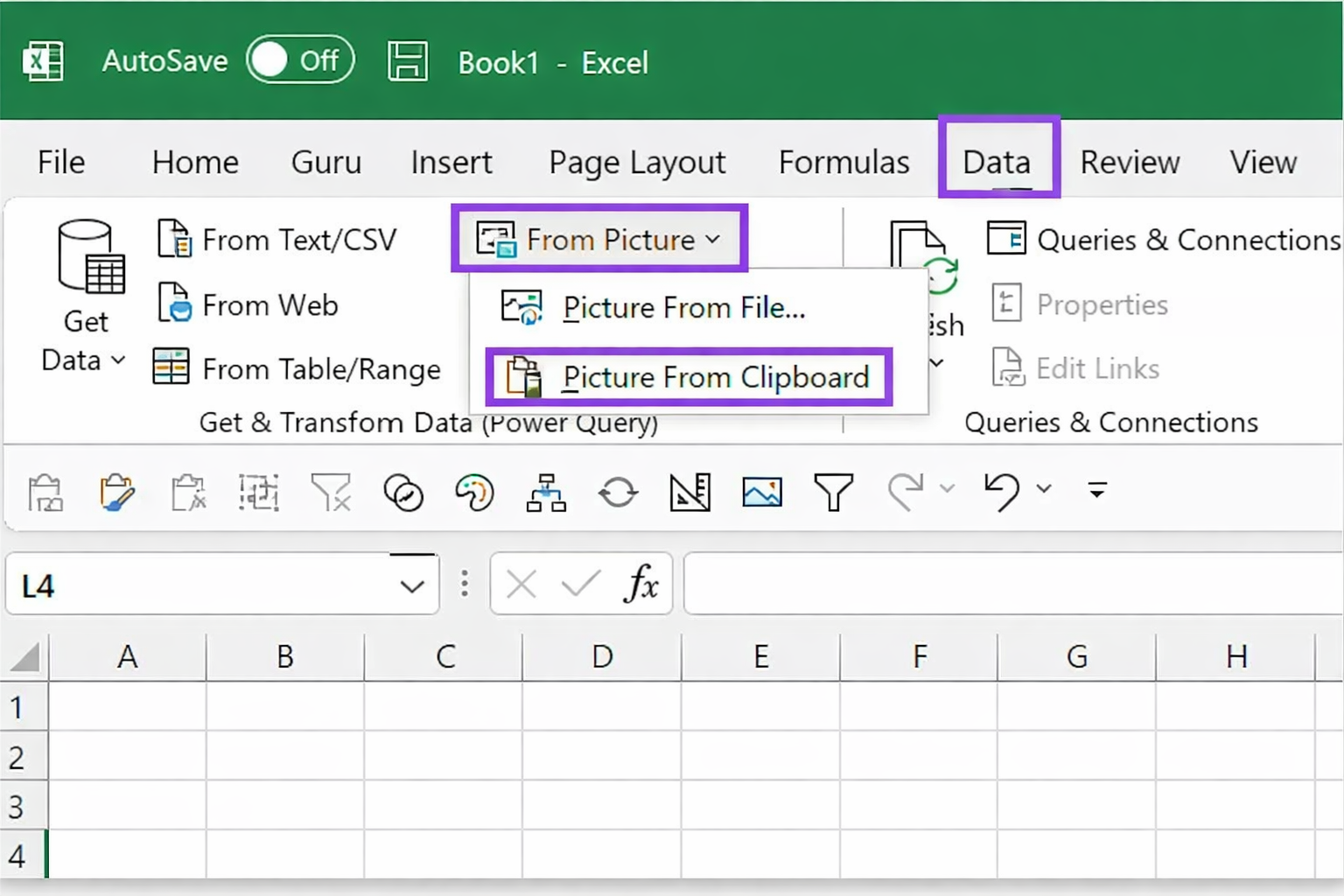
If your use case is simple, Excel itself may already be enough.
Microsoft Excel includes a feature that lets you import data from a picture. You upload or capture an image, Excel tries to detect the table, and then it converts it into cells you can review before inserting.
This works best when the image already contains a clean table with visible rows and columns. Think printed financial tables, simple lists, or screenshots with a structured layout.
It is fast and convenient, but it has limits. It struggles more when the image is low quality, when the layout is irregular, or when the content is not really a table to begin with. A store shelf, a receipt with mixed formatting, or a product wall is a very different challenge from a neat grid.
So yes, Excel can help, but only for the easier end of the spectrum. Excel also does not automatically detect all the possible data that can be extracted from a complex picture.
Method 2: Use AI-based image data extraction tools
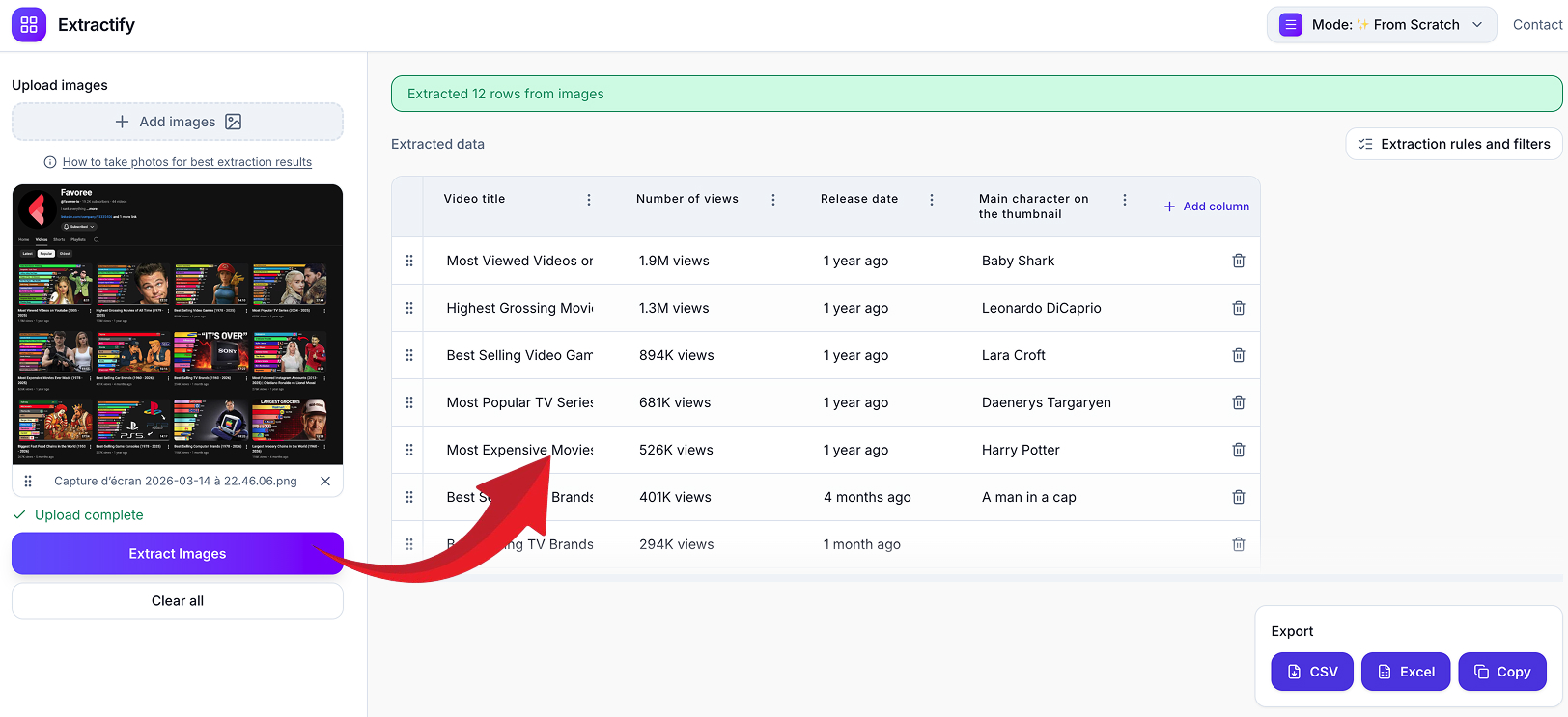
This is where things get more interesting.
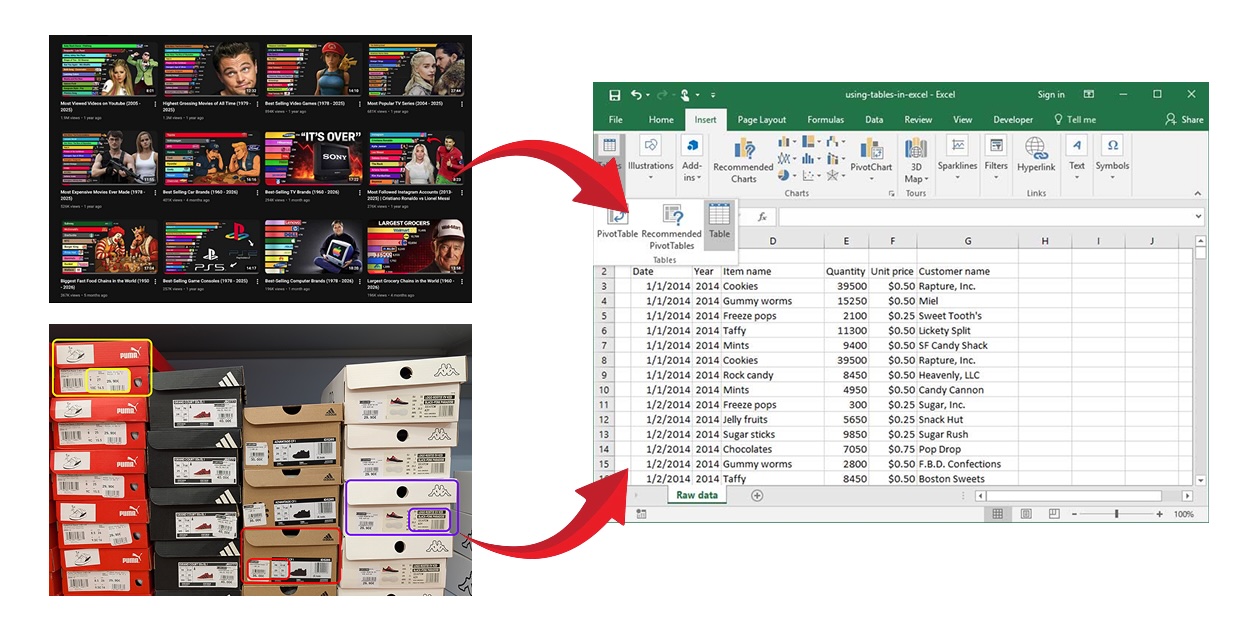
Newer AI extraction tools like Extractify do more than just read text. They try to understand the image in context. That means they can be much better for semi-structured or real-world images where the goal is not just "read text" but "turn this visual scene into usable rows and columns."
For example, a basic OCR tool might read some packaging text from a shelf image. An AI-based extraction tool may go further by identifying each visible product, separating fields like brand, size, quantity, price, or facing count, and putting that into a table format that actually helps.
This approach is especially valuable for workflows like:
- retail shelf audits
- screenshots of repetitive website pages such as YouTube channels, Instagram grids, product listings, or directories
- stock checks from photos
- warehouse inventory images
- receipts and labels with inconsistent layouts
- catalogs built from product pictures
That is the gap many businesses run into. Traditional OCR feels almost useful, but not quite useful enough. AI extraction closes more of that gap.
Method 3: Use OCR tools
Adobe describes OCR in simple terms: it converts scanned documents and image files into editable and searchable text.
This is one of the oldest and most common approaches. You upload an image, the OCR engine detects letters and words, and then it outputs text that can be copied into Excel or exported in a structured format.
OCR is useful when the main challenge is simply reading printed text. It can work well for invoices, typed forms, labels, and screenshots.
The problem is that OCR often stops at text recognition. It may not understand the real structure of the information. That is why OCR output often needs cleanup afterward. Columns get merged, product names get broken, numbers shift into the wrong places, and manual correction becomes part of the workflow.
In other words, OCR is often better than typing everything by hand, but it does not always get you all the way to a clean spreadsheet.
Method 4: Build a custom extraction workflow with APIs
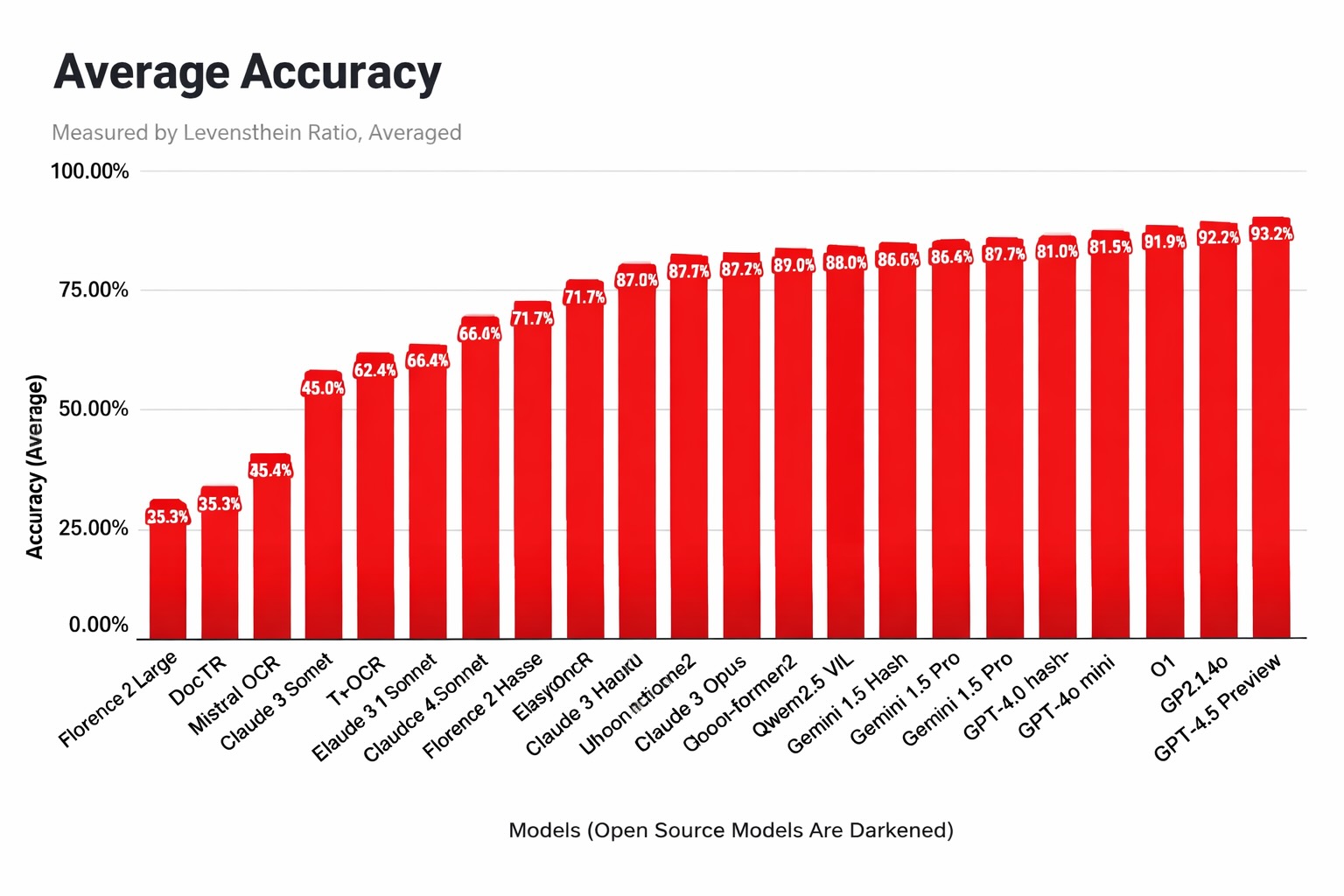
For high-volume businesses or technical teams, a custom workflow can make sense.
This usually involves combining OCR or AI APIs with a backend system that sends extracted results into Excel, CSV files, a database, or Google Sheets. It offers more flexibility and automation, but it also takes more time to build and maintain.
This route makes sense when image extraction is a core operational process and not just an occasional task.
But for most teams, the smarter starting point is not building infrastructure from scratch. It is finding a tool that already handles the difficult part: turning messy images into structured tables.
Frequently Asked Questions
What kinds of images can be converted to Excel?
A lot more than most people think.
Here are common image types that can be turned into spreadsheets:
- photos of retail shelves
- screenshots of documents or website pages
- product labels and packaging
- receipts and invoices
- screenshots of tables or dashboards
- warehouse pallet labels
- inventory room photos
- business cards
- catalog pages
- handwritten lists, in some cases
- book spines, trading cards, and collectible labels
The real question is not whether the image contains text. The real question is whether the system can turn what it sees into the fields you actually care about.
For one business, that may mean product name, SKU, and quantity. For another, it may mean item, date, price, and tax. For another, it may mean title, condition, set, and card number.
That is why structured extraction matters more than raw text recognition.
How to choose the right image-to-Excel tool?
If you are comparing tools, do not just ask whether they can "read text from images." That bar is too low.
Ask better questions.
Can the tool handle real phone photos, not just clean scans? Can it preserve structure instead of dumping text into one block? Can it export directly to Excel or CSV? Can the results be reviewed and corrected easily? Can it adapt to the specific fields your workflow needs? Can it handle repeated use, not just one test image?
This is where a lot of flashy demos fall apart. They look good on a perfect sample image, then break the moment you use an actual picture from the field.
A good extraction tool should save time in real conditions, not just in marketing screenshots.
What does it mean to extract data from images to Excel?
At a basic level, it means taking information that appears inside an image and converting it into rows and columns that can be edited in Excel.
That sounds simple, but the phrase covers a lot of different situations.
Sometimes the image is very clean, like a screenshot of a table. In that case, extraction is relatively easy. The tool just needs to detect the text and preserve the layout.
Sometimes the image is messy, like a phone photo of a grocery shelf. In that case, the tool has to do more than read text. It may need to identify products, count facings, detect labels, separate columns logically, and structure the output in a way that actually makes sense in a spreadsheet.
That is the real distinction people often miss: extracting text is not the same thing as extracting usable data.
If all you get is a wall of text dumped into one column, you have not really solved the problem. You have just moved the mess from the image into Excel.
Why businesses want image-to-Excel workflows?
The demand is obvious once you start listing the use cases.
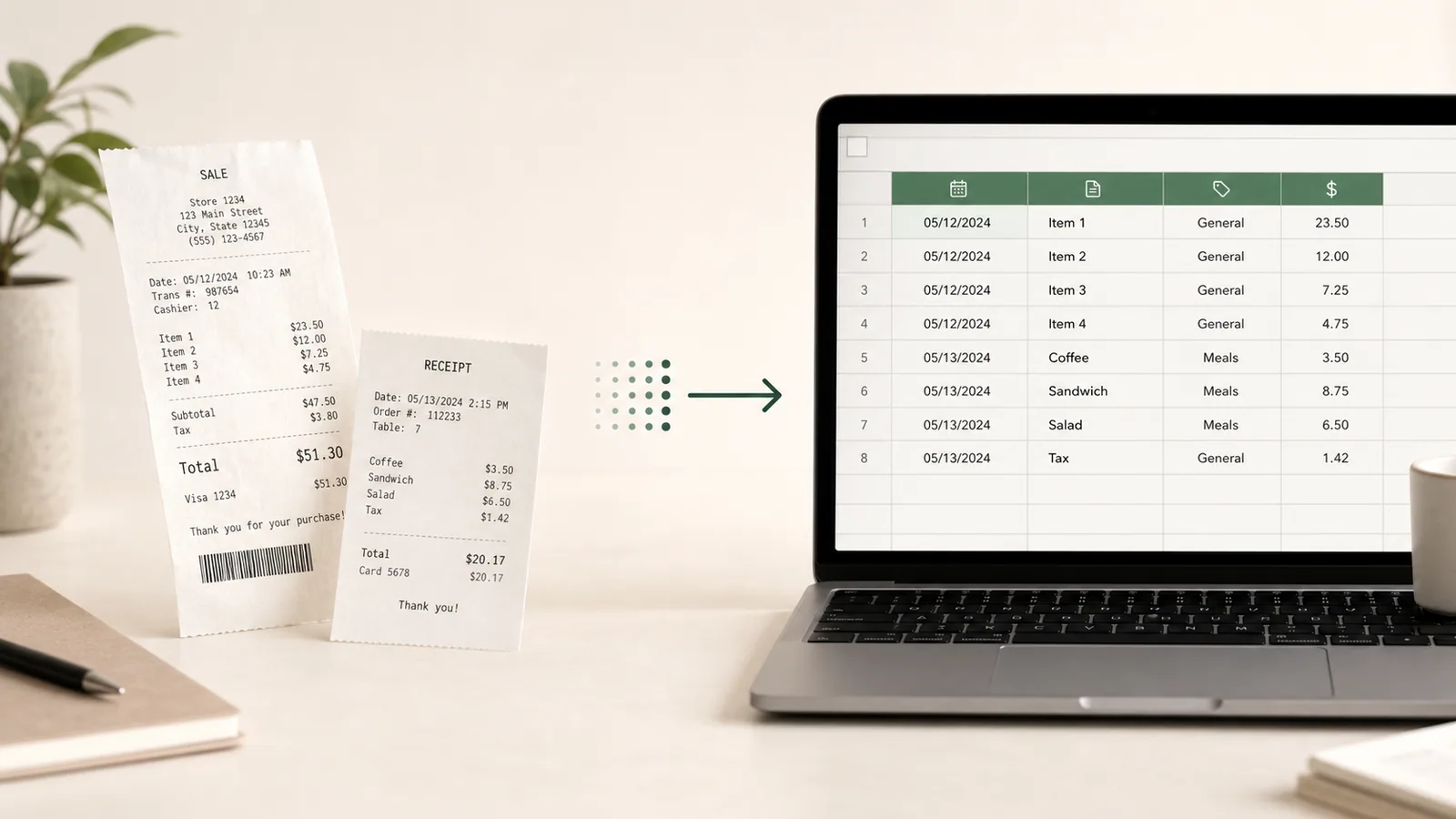
Retail teams want to turn shelf photos into product counts and inventory tables. Finance teams want receipt photos turned into organized expense spreadsheets. Warehouse staff want stock labels extracted from phone photos. Resellers want product images or box labels converted into catalogs. Collectors want trading card details structured in Excel. Operations teams want to capture information from the field without forcing employees to type everything manually.
The pattern is always the same: the image is easy to capture, but the data inside it is hard to reuse until it becomes structured.
That is why "extract data from image to Excel" is such a practical search intent. People are not looking for abstract AI magic. They are trying to save time on a very real workflow.
Final thoughts
If you are searching for the best way to extract data from images to Excel, the answer depends on how simple or messy your images are.
If you are dealing with clean tables, Excel's built-in feature may be enough. If you mainly need text recognition, OCR tools can help. But if your workflow involves real-world photos, inconsistent layouts, shelves, labels, or operational images that need to become structured spreadsheets, you will usually need something more capable.
That is where AI-based extraction becomes genuinely useful.
The key is not just reading the image. The key is turning it into data you can actually work with.
And that is the whole point of the spreadsheet in the first place.
If your source is a PDF (especially scanned or multi-page tables), see this companion guide on how to extract tables from a PDF.
If your workflow is mostly expense receipts, this comparison of tools to convert receipts to Excel automatically will help you pick the right option faster.
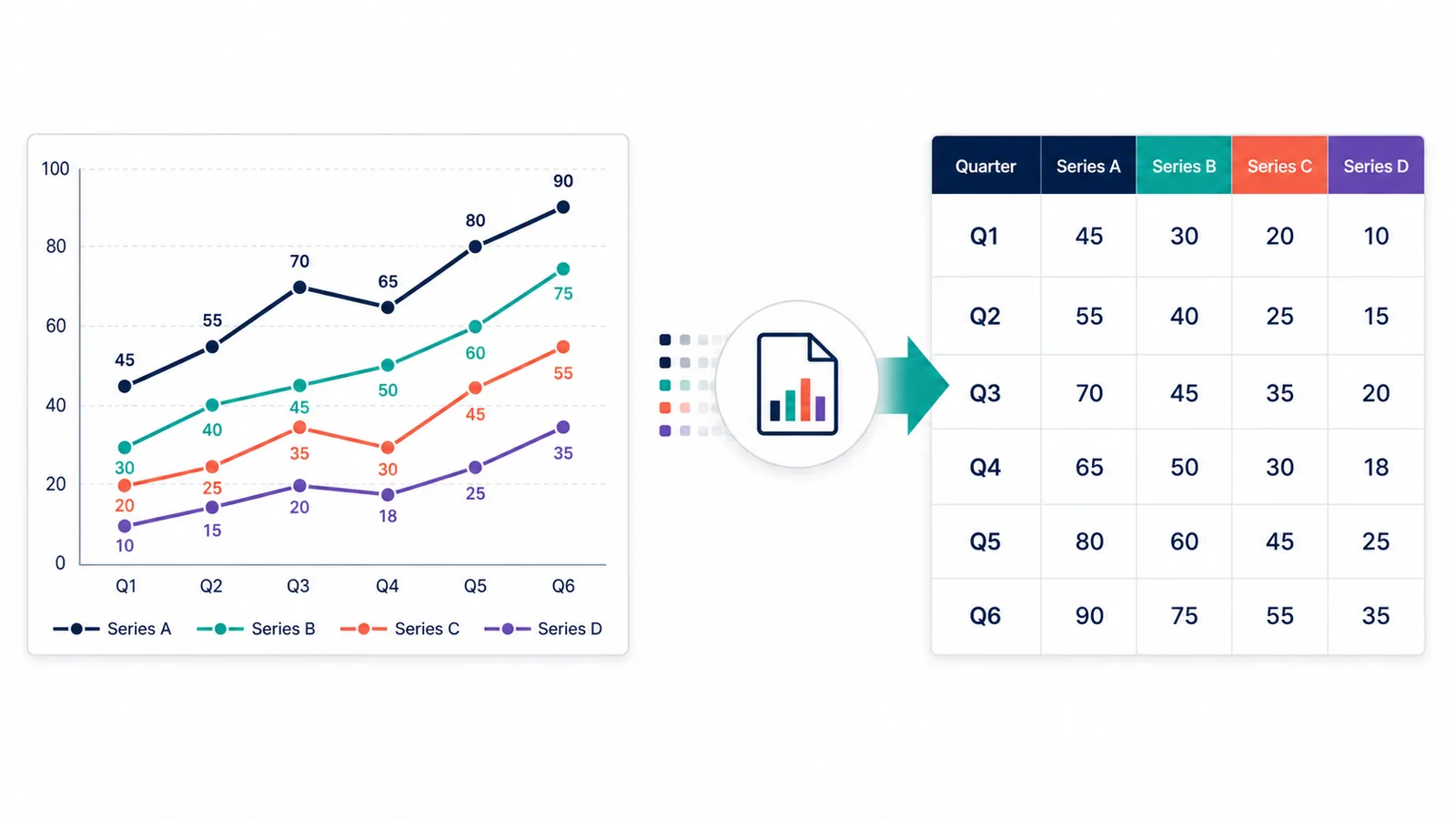
If your source is a chart or graph image, this practical walkthrough on extracting data from charts and graphs covers the best methods and tools.
If your workflow is field documentation, this practical guide on turning electrical jobsite photos into structured Excel reports covers column design, review steps, and reporting limits.