How to Extract Data From Screenshots (Without Copy‑Pasting Everything)
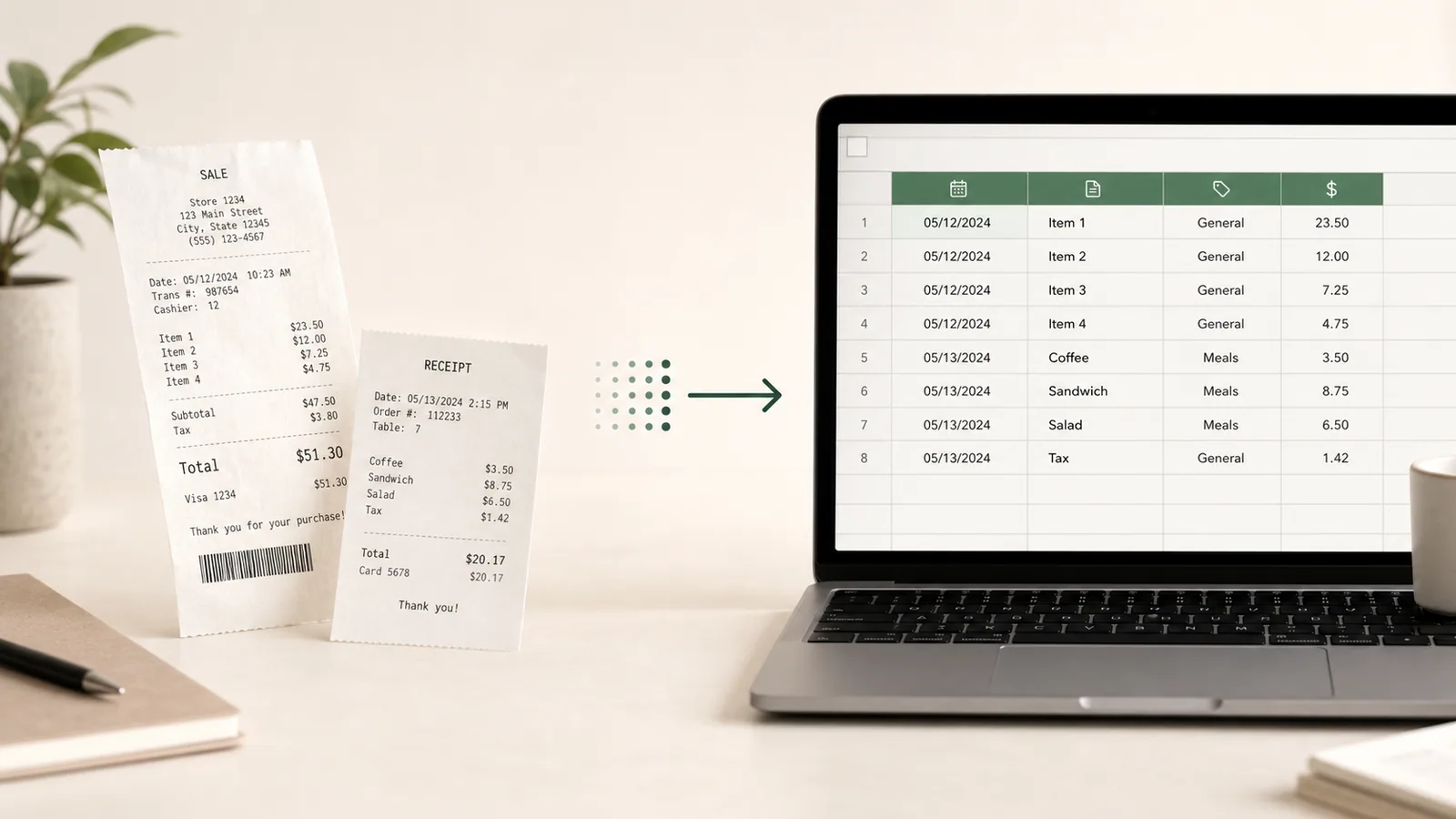
Screenshots are everywhere. Dashboards, YouTube channel pages, product listings, analytics panels, PDFs, receipts, social media feeds: valuable data is constantly locked inside images.
According to McKinsey, employees spend nearly 20% of their workweek searching for and gathering information, much of it trapped in unstructured formats like documents, dashboards, and images. Screenshots are one of the most common examples of this hidden data.
And when you need that data in Excel or Google Sheets, the usual workflow is painful: manually retyping everything, copying piece by piece, or giving up entirely.
But extracting structured data from screenshots is now possible and surprisingly fast.
In this guide, you'll learn the best methods to extract data from screenshots automatically with real-world examples (YouTube, dashboards, invoices, product lists).
Method 1 — OCR (Basic Text Extraction)
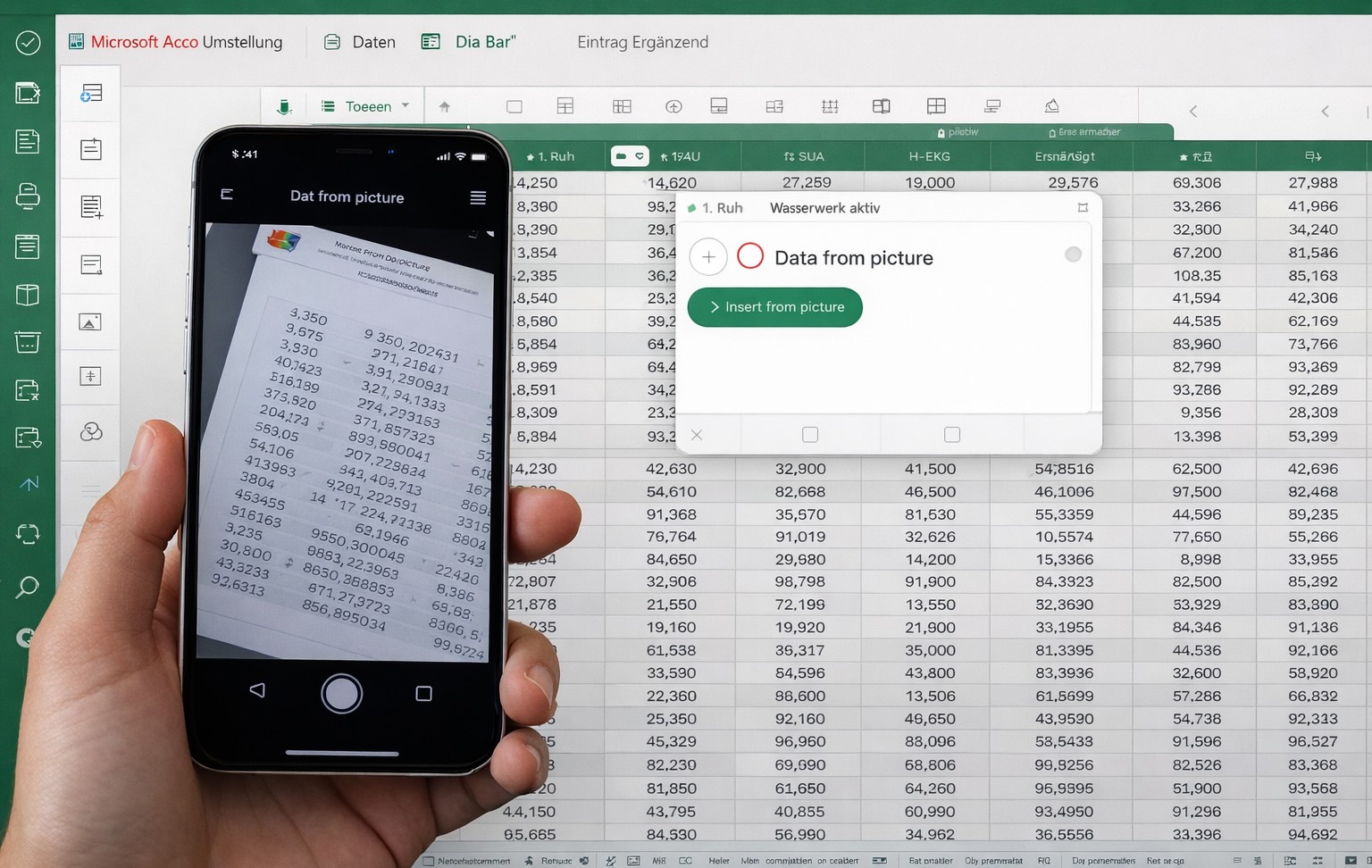
The most common way to extract data from screenshots is OCR (Optical Character Recognition).
OCR reads text from an image and outputs raw text. Tools like Google Drive OCR, Excel, or built‑in phone features can do this.
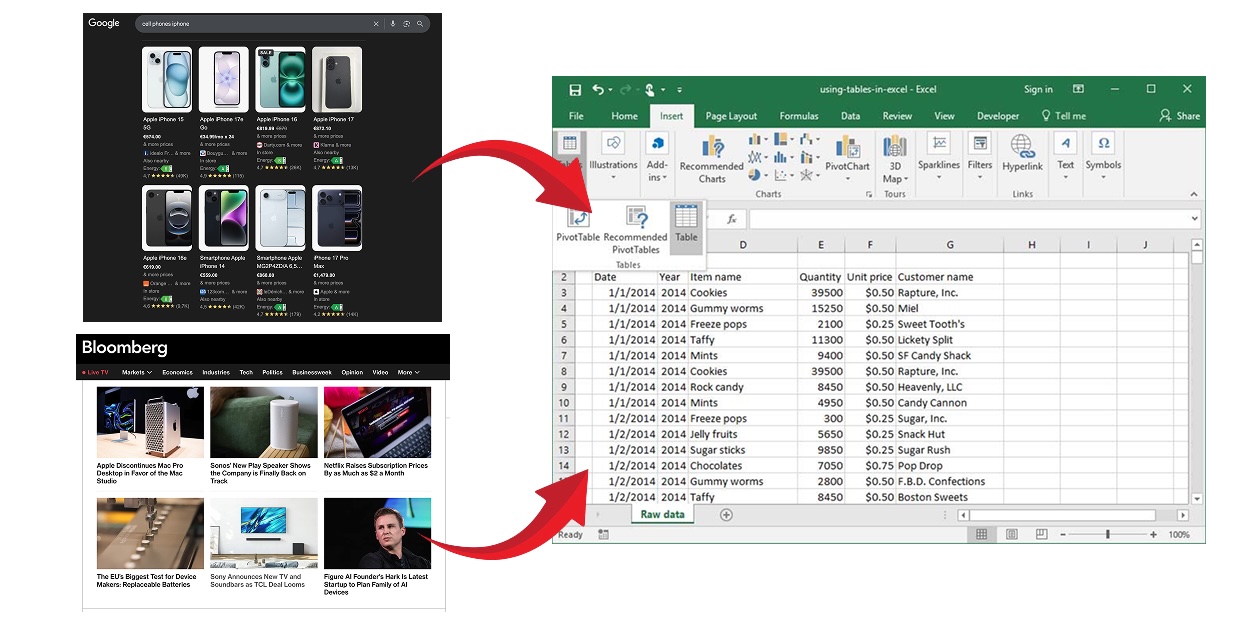
How to try it on Excel:
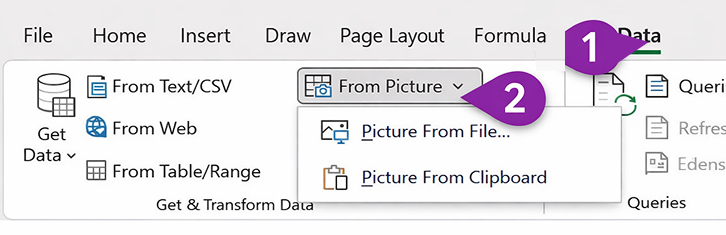
The problem: this has to be a table from the start. If it is just text, it's not structured.
You still need to manually:
- Separate columns
- Split rows
- Clean formatting
- Remove noise
OCR is useful, but it's only step one.
Method 2 — Extract Structured Data From Screenshots (Recommended)
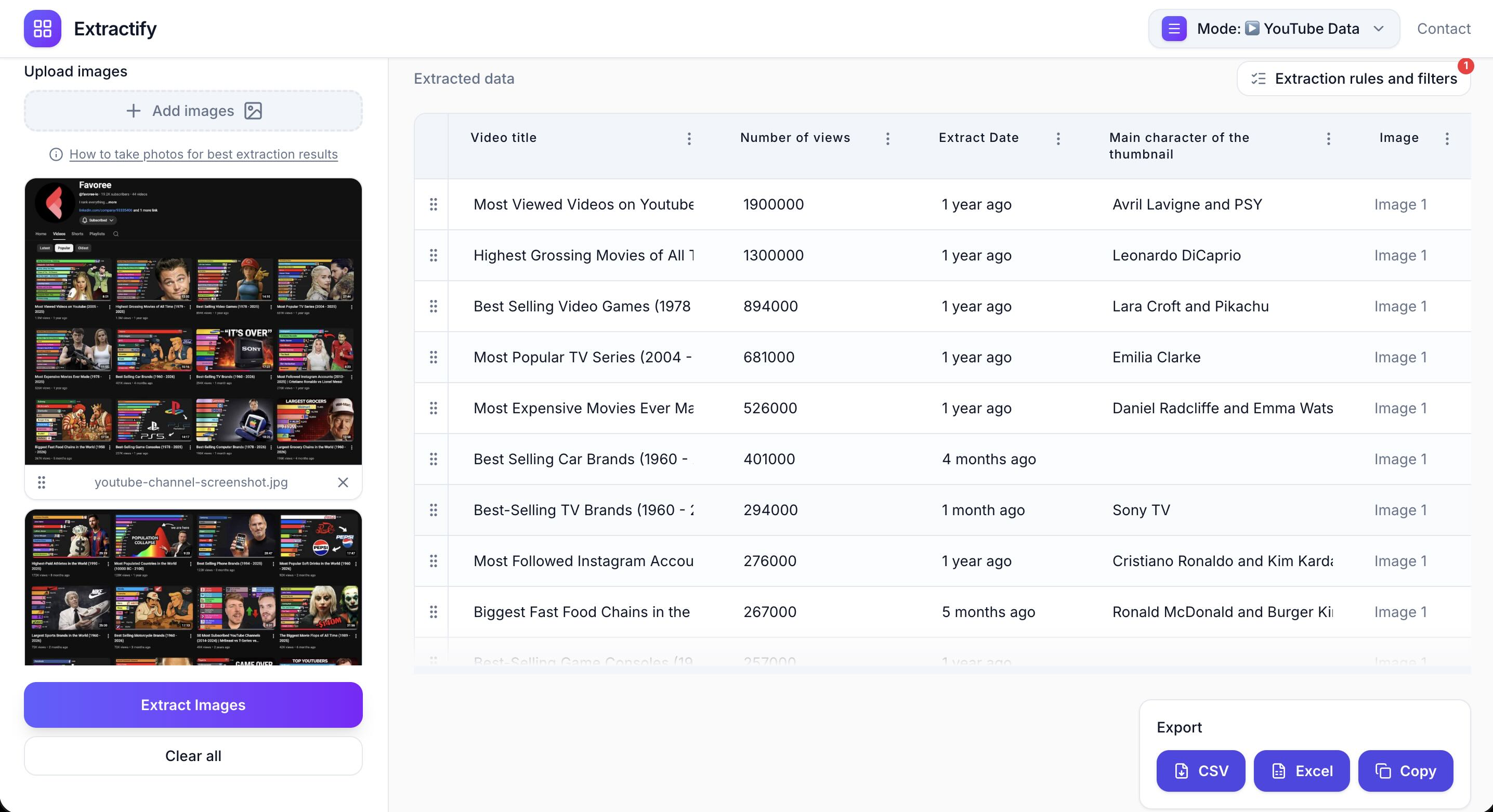
A newer approach goes further than OCR. Instead of just extracting text, AI tools like Extractify automatically detect: rows, columns, layout, tables, repeating patterns, numbers vs text...
This allows screenshots to be converted directly into structured tables without having to do anything but upload images.
This works especially well for:
- YouTube channel screenshots
- Tables inside PDFs
- Analytics dashboards
- Ecommerce listings
- Price comparison pages
- Leaderboards
The key advantage is that you don't just extract text, you extract structured data.
You can even define the columns yourself before extraction: the system then maps detected values into those columns automatically.
This makes cleanup much faster.
Method 3 — Use ChatGPT or Claude to Extract Data From Screenshots
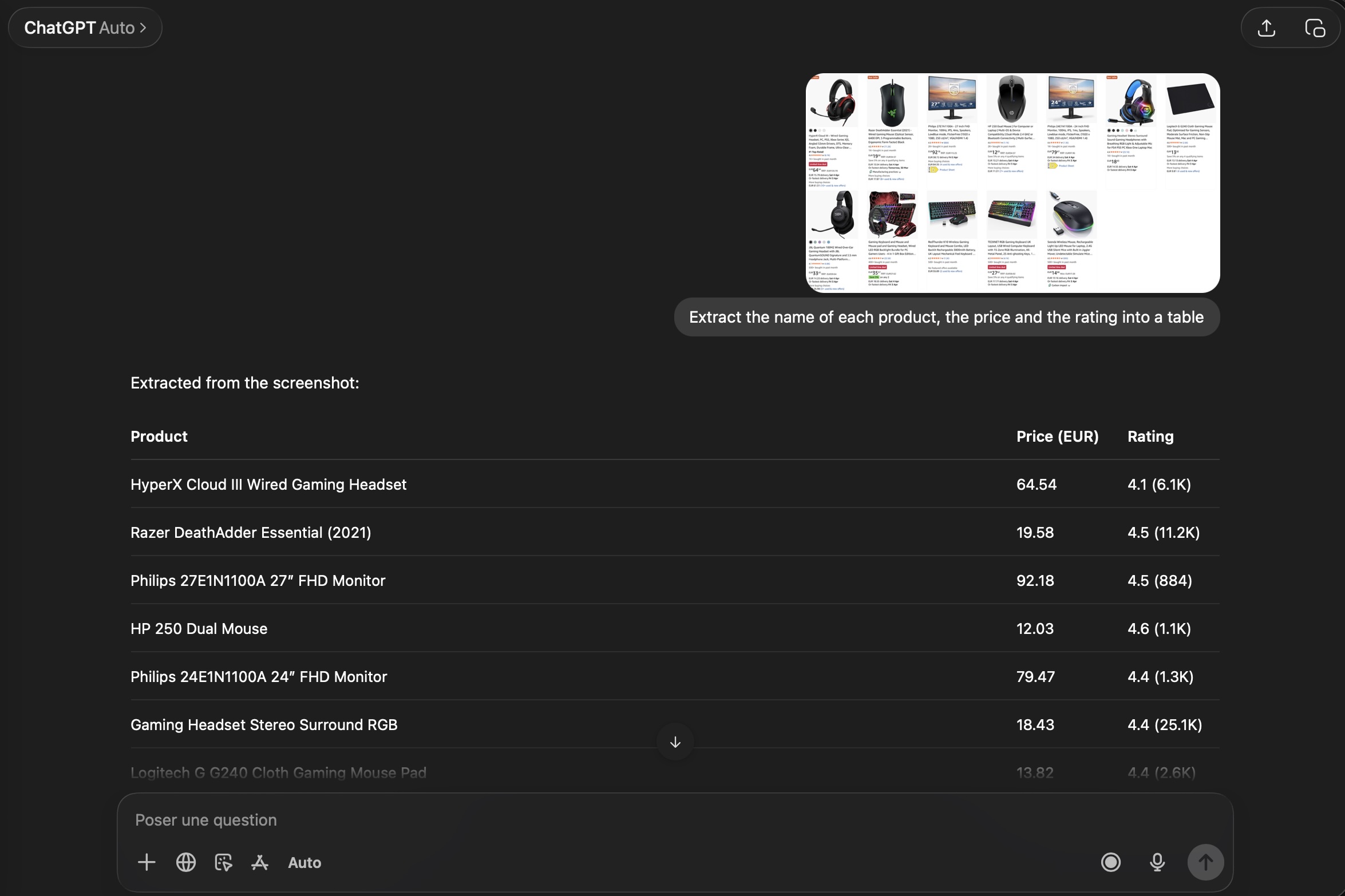
Another option is to upload your screenshots directly into ChatGPT or Claude and ask the model to extract the data into a table.
For example, you can prompt:
"Extract this screenshot into a table with columns: Title, Views, Date"
The AI will read the image and return structured data.
This works well for: one‑off screenshots, small datasets, quick analysis or occasional data extraction.
However, this method has important limitations:
- Slower for large volumes
- Hard to process multiple screenshots consistently
- Less reliable column mapping
- Manual copy/paste still required
- Not ideal for repetitive workflows
In practice, this approach works best when you only have a few screenshots to process or when the task is not repetitive.
If you need to extract data regularly or at scale, a dedicated structured extraction workflow is much faster and more consistent.
Tips for Better Screenshot Data Extraction
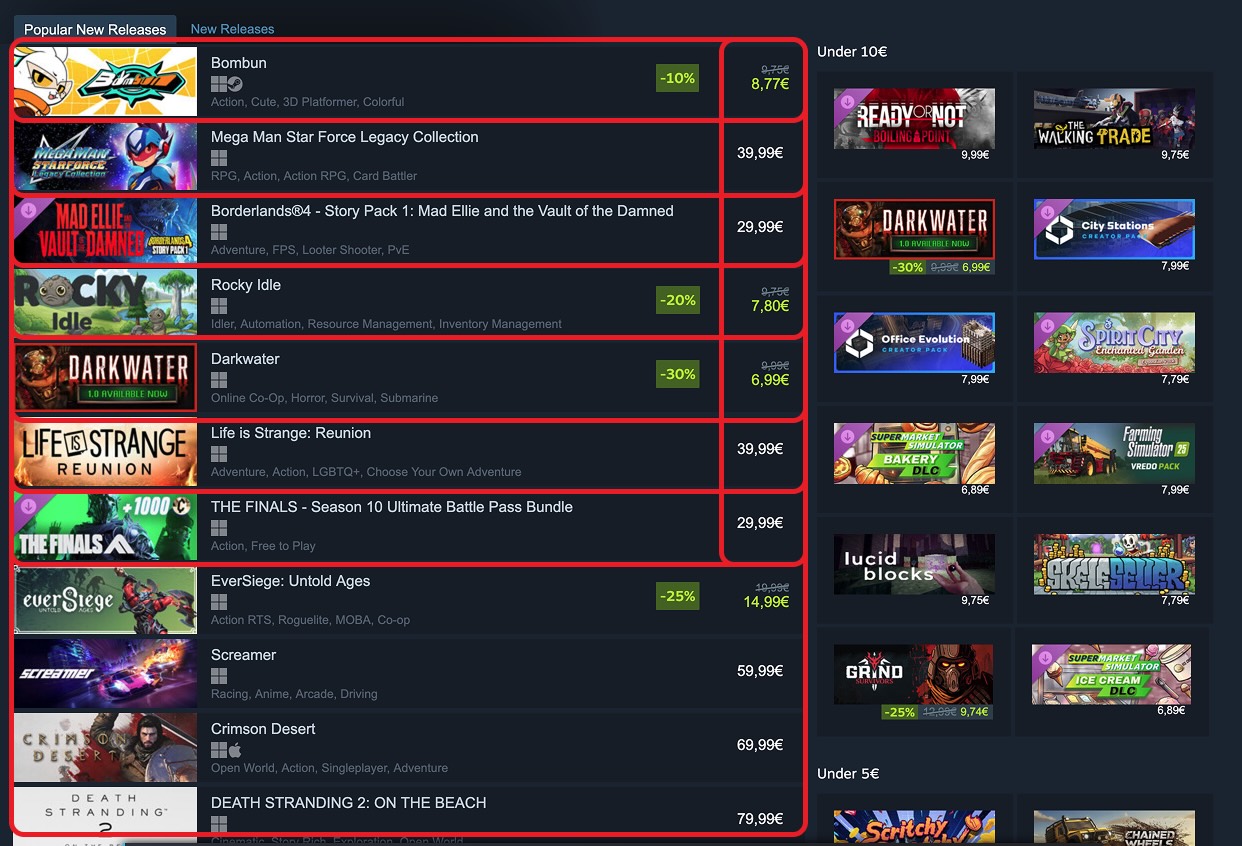
To improve accuracy:
- Use high‑resolution screenshots
- Avoid cropping text
- Keep rows aligned
- Capture full columns
- Avoid overlapping elements
- Use consistent layouts
Even messy screenshots usually work, but cleaner inputs improve results.
When Screenshot Extraction Works Best
This approach works best when:
- Data is in rows
- Layout is repetitive
- Columns are visually aligned
- Text is readable
It also works across multiple screenshots. You can upload several images and merge them into one dataset.
This is useful for:
- Long YouTube pages
- Large product catalogs
- Multi‑page PDFs (see how to extract tables from a PDF)
- Multiple dashboards
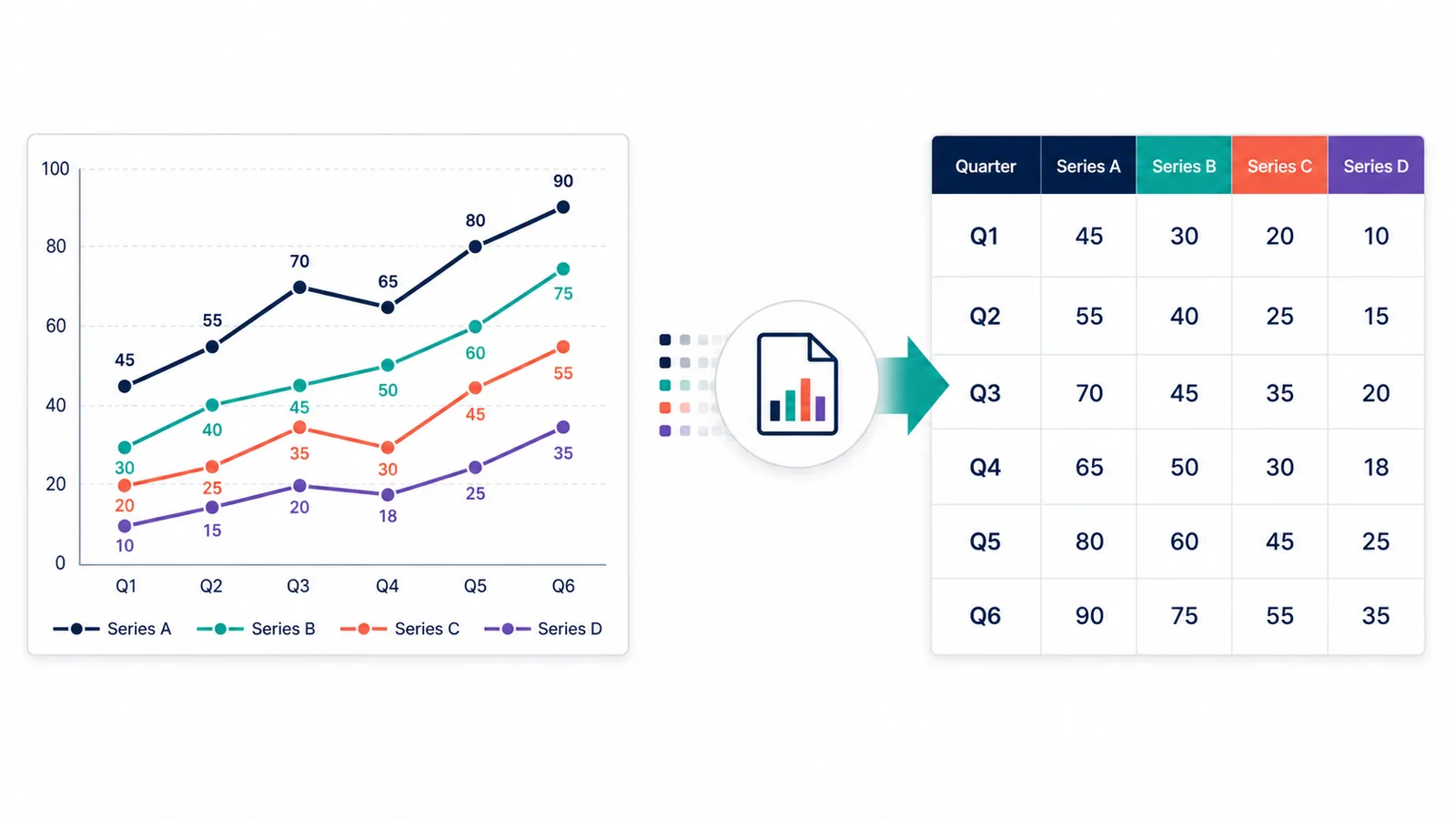
- Chart-heavy dashboard captures (see how to extract data from charts and graphs)
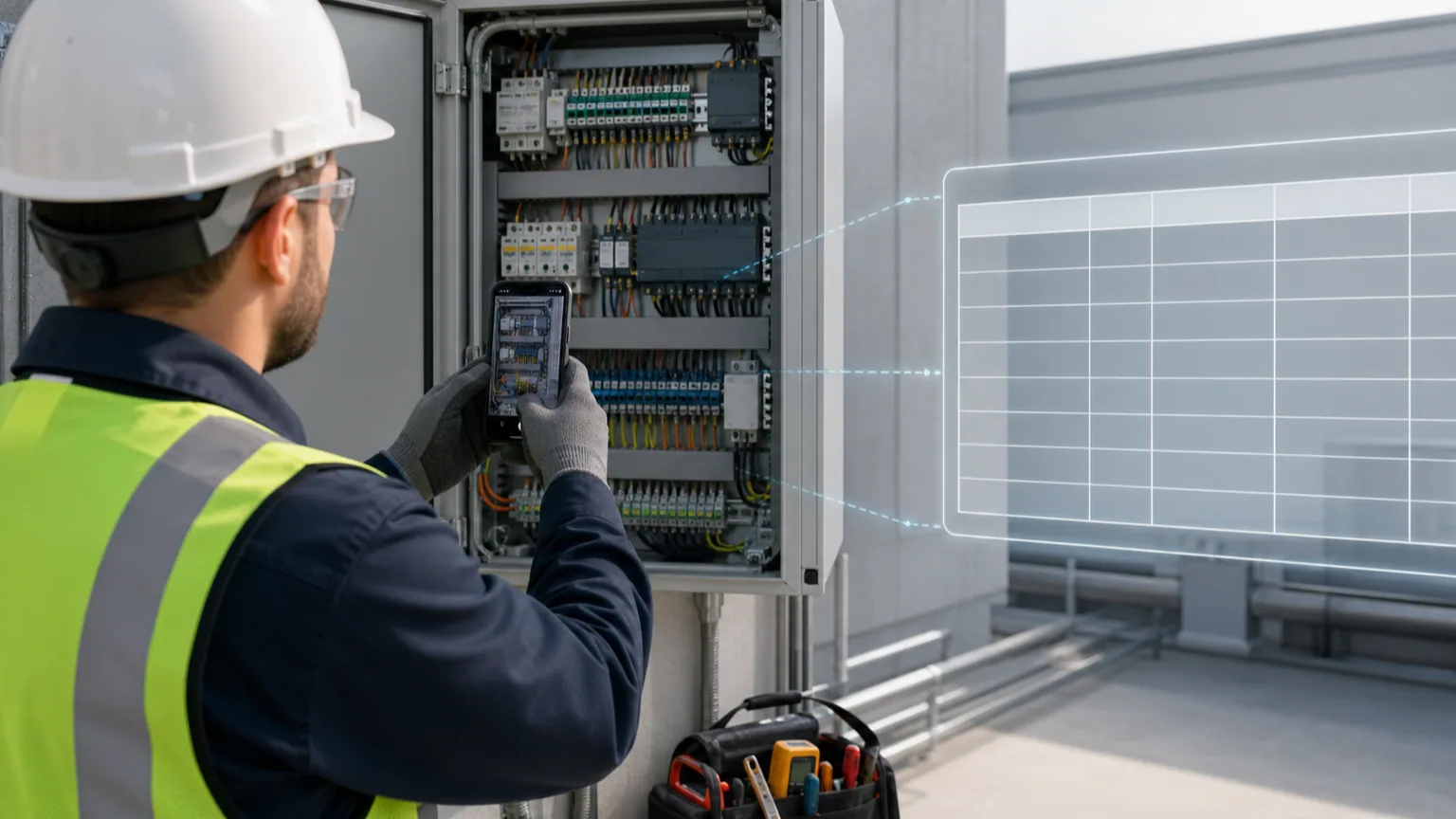
- Field photo documentation workflows (see how electricians can turn jobsite photos into structured Excel reports)