Top Tools to Convert Receipts to Excel Automatically in 2026
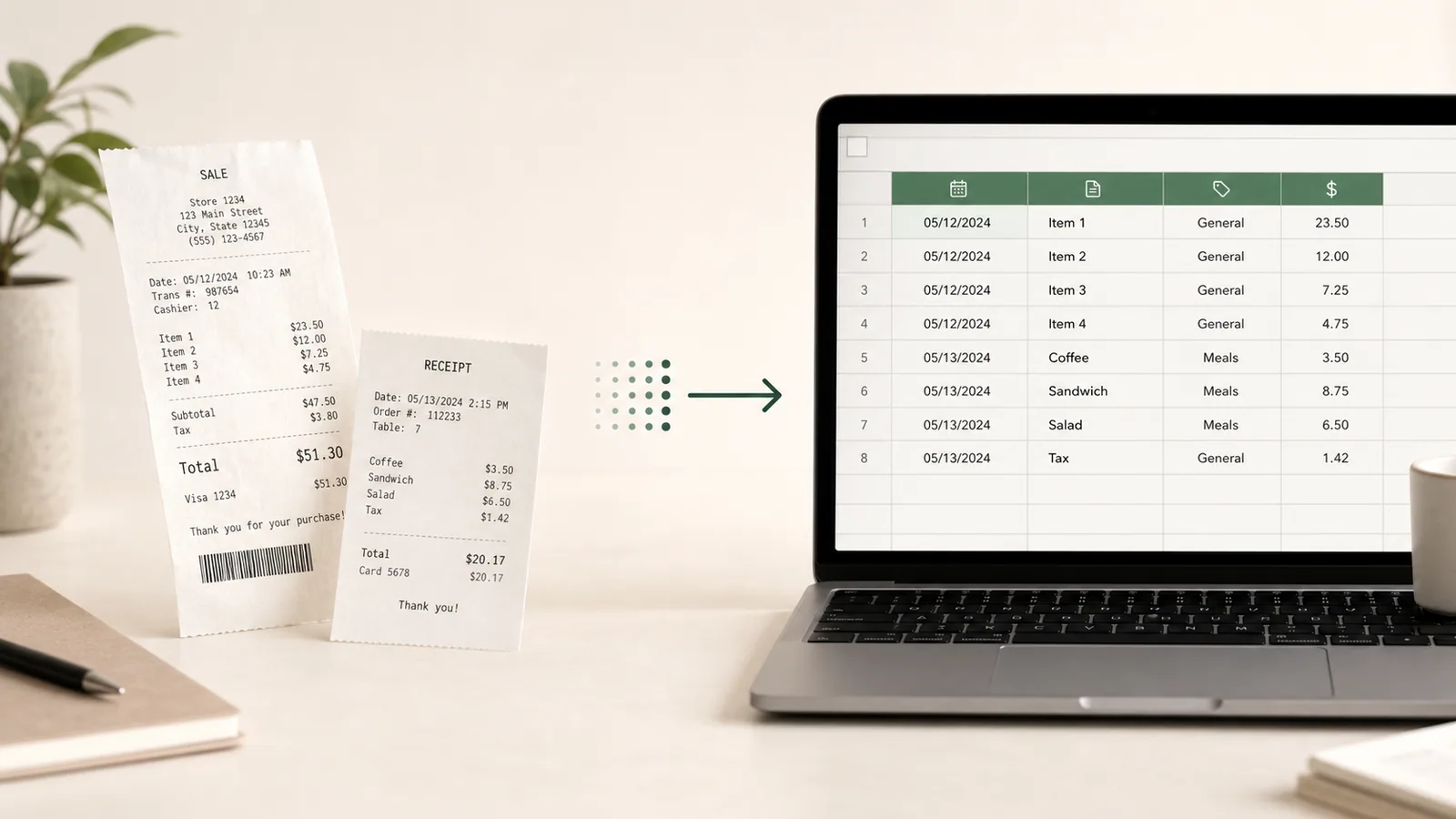
Typing receipt dates, merchants, taxes, totals, and line items into a spreadsheet is a small task that becomes expensive through repetition. The IRS estimates that business filers spend an average of 24 hours on tax-return activities, including 12 hours on recordkeeping. Receipt entry is only one part of that burden, but it is an obvious place to remove avoidable manual work.
This guide compares seven tools that can turn receipt photos, scans, or PDFs into Excel or CSV data in 2026. Some are direct receipt-to-spreadsheet converters. Others are expense-management or document-automation platforms that make more sense when receipts need approval, accounting integration, or API processing.
Quick comparison
| Tool | Best for | Spreadsheet output | Line-item focus | Workflow style |
|---|---|---|---|---|
| Nanonets | Higher-volume document and accounts-payable automation | CSV and Excel, with structured JSON for integrations | Yes | Web platform and API |
| Extractify | Turning one or several receipt images into an editable table | CSV and Excel | Yes | Simple visual workflow |
| Veryfi | Receipt OCR for applications and quick file conversion | CSV and Excel, plus structured API output | Yes | Online converter, app, and API |
| Parseur | No-code processing from email, uploads, and integrations | CSV, Excel, and Google Sheets | Yes | No-code automation |
| Zoho Expense | Employee expense capture, reporting, and reimbursement | CSV, XLS, and XLSX reports | Expense-level and supported line-item capture | Expense-management system |
| Expensify | Team expense reports, approvals, and accounting exports | CSV and XLS exports | Primarily expense-level | Expense-management system |
| Microsoft Excel | Occasional conversion when the receipt already resembles a table | Native Excel workbook | Limited by the receipt layout | Built into Excel |
The ranking is not a universal accuracy score. It reflects how useful each tool is for the stated job: getting receipt data into a spreadsheet with as little unnecessary setup as possible.
Prices below are public US prices checked in July 2026. Taxes, currencies, contracts, and usage limits may vary or change.
What a good receipt-to-spreadsheet tool should extract
Before comparing products, decide what one row in the final file should represent.
For basic expense tracking, one row per receipt may be enough. Useful columns include:
- merchant;
- receipt date and number;
- currency;
- subtotal, tax, tip, and grand total;
- payment method;
- expense category;
- source receipt or image reference.
For purchasing analysis, inventory, or detailed bookkeeping, you may need one row per line item instead. That requires item descriptions, quantities, unit prices, discounts, taxes, and line totals to stay aligned. Many receipt scanners capture the merchant and total well but are not designed to build a complete item-level table.
We think this is the most important distinction in the comparison. A polished expense report and a detailed purchase dataset are both useful, but they solve different problems.
1. Nanonets: best for higher-volume receipt automation
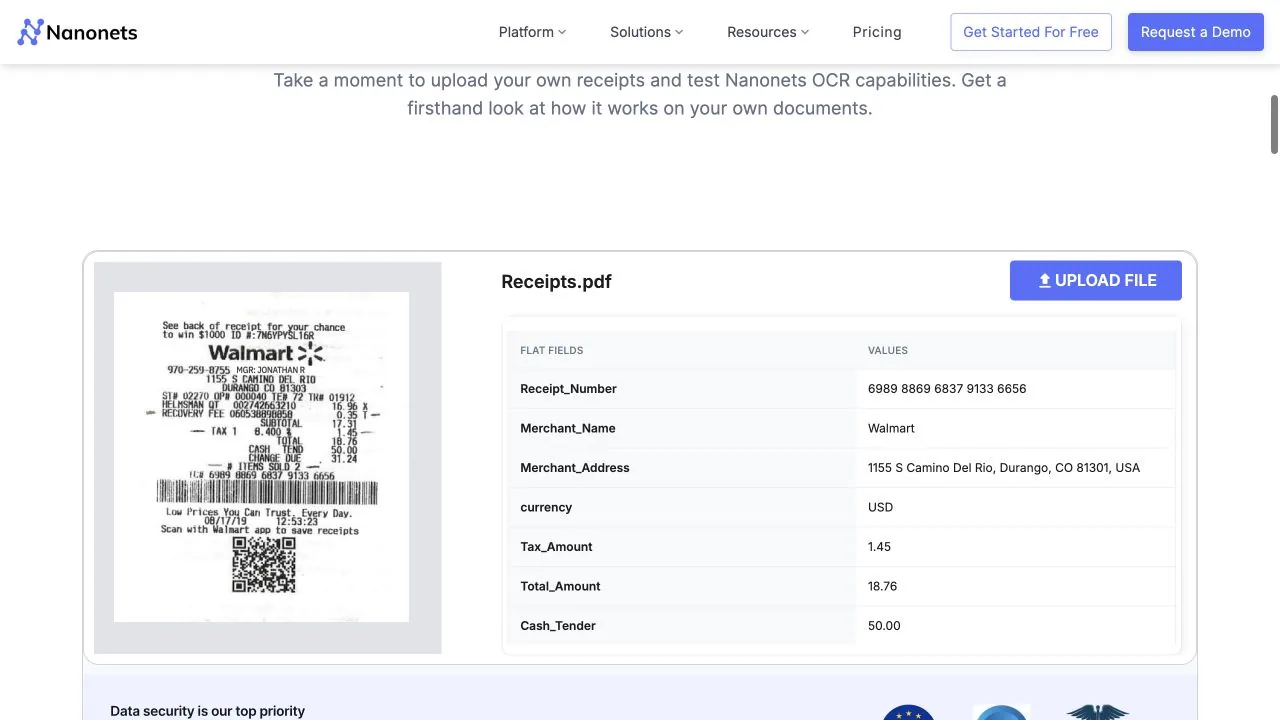
Nanonets Receipt OCR is suited to teams that want receipt extraction to become part of a broader document-processing workflow. It can identify fields such as merchant, date, total, taxes, and line items, then return structured data for review, export, or integration.
Its main advantage is workflow depth. Nanonets is not limited to a single upload-and-download screen: technical teams can use its API, while operations teams can configure validation, categorization, exception handling, and downstream accounting steps. Its documentation describes CSV and Excel as spreadsheet-friendly outputs, with structured JSON as the primary format for automated integrations.
Price: Starts with $50 in free credits; the Starter plan is then $100 per month for 100 credits, with additional usage priced by workflow block.
When Nanonets is a good choice
- You process receipts or other financial documents at meaningful volume.
- Receipt data must feed an accounts-payable, ERP, database, or accounting workflow.
- You need line items rather than only the merchant and total.
- A team can configure extraction rules, review queues, and integrations.
Limitations
Nanonets may be more system than you need for occasional spreadsheet conversion. A user who simply wants to upload ten receipts and download one table may prefer a narrower tool with fewer workflow decisions.
2. Extractify: best for editable line-item tables from receipt images
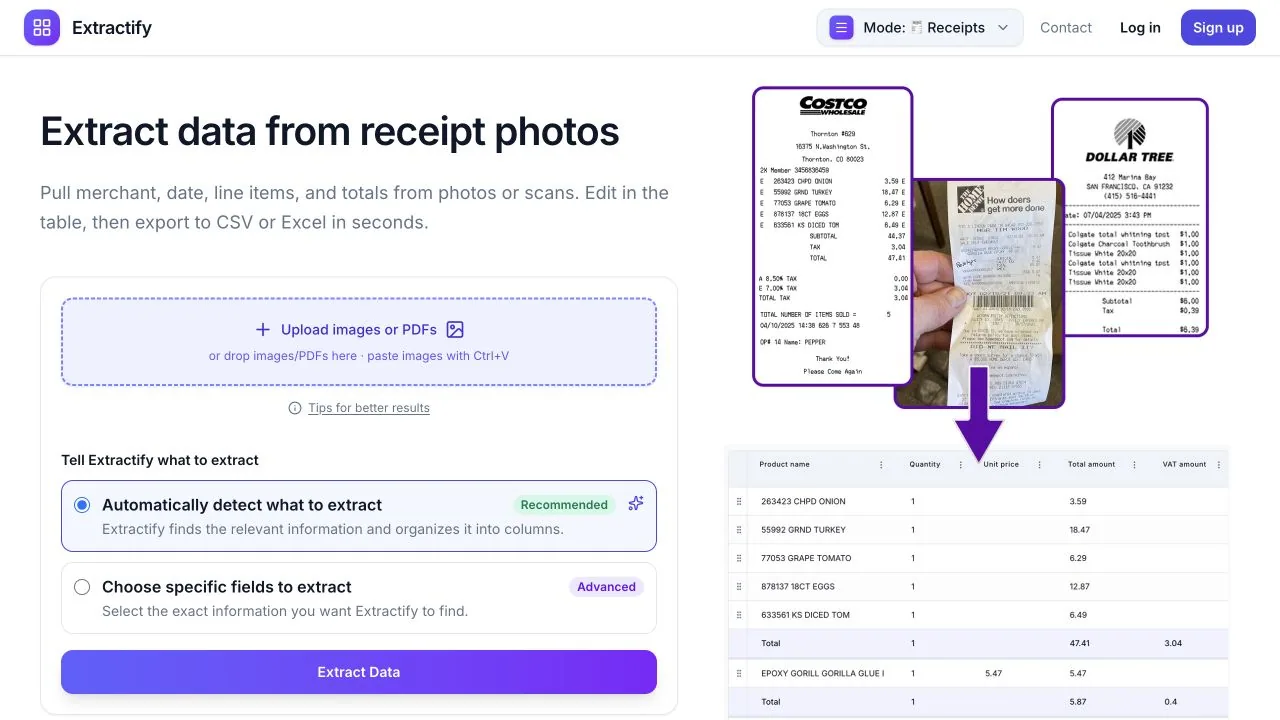
Extractify's receipt-to-spreadsheet tool focuses on a direct visual workflow: upload receipt photos or scans, extract the visible data into rows and columns, review the table, then export it to CSV or Excel.
The receipt mode can capture merchant names, dates, receipt numbers, item descriptions, quantities, unit prices, line totals, tax, tip, and grand totals. You can also define additional columns when your spreadsheet needs a particular field or category.
Extractify is particularly useful when one spreadsheet should contain detailed purchases from several receipts. You can upload multiple receipt images in one batch, keep each purchase as a separate line item, review uncertain values in an editable table, and export the combined result.
Price: Free accounts currently include up to 300 extractions per month.
When Extractify is a good choice
- You want detailed line items, not only one total per receipt.
- You need to process several receipt photos into one table.
- You want to correct values before downloading the spreadsheet.
- You prefer a no-code interface and do not need a full expense-approval platform.
- You want CSV or Excel output without building an API integration.
Limitations
Extractify is an extraction and table-review tool rather than a complete corporate expense-management system. If you need card reconciliation, reimbursement approvals, travel policies, and accounting sync in the same product, Zoho Expense or Expensify may fit that broader process better.
3. Veryfi: best for receipt OCR APIs and quick conversion
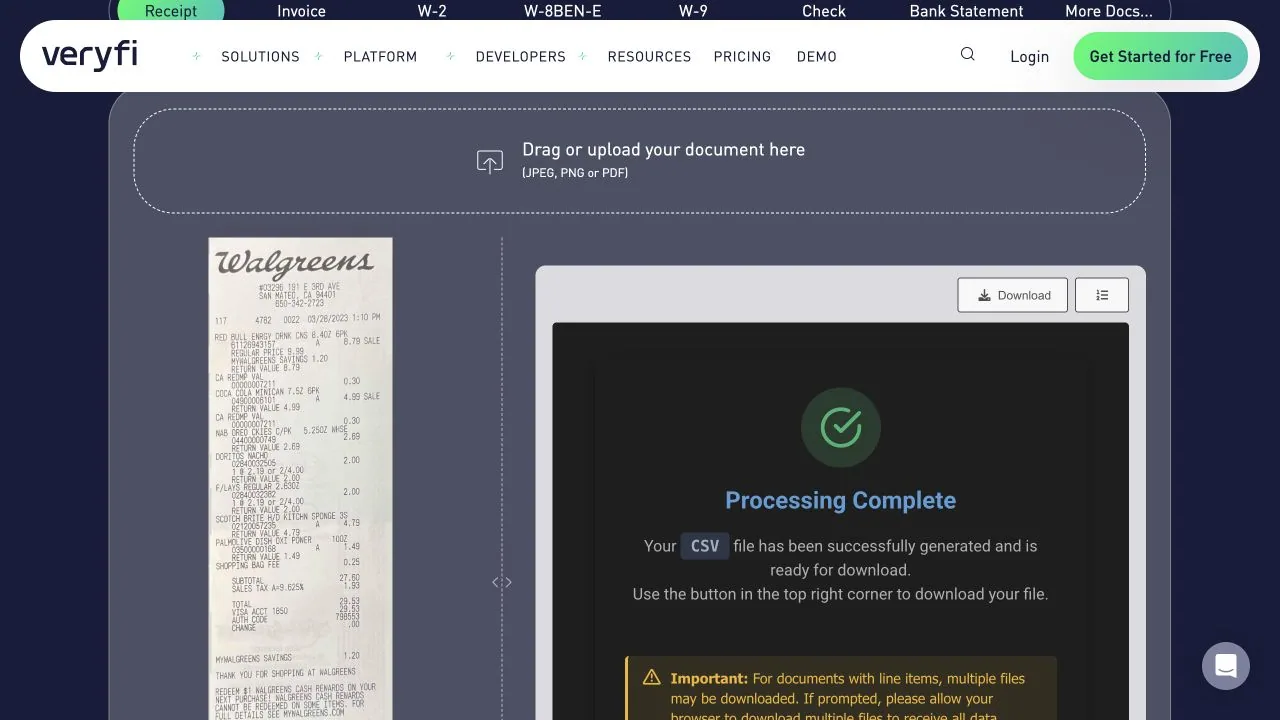
Veryfi's receipt scanner converts receipt images into an editable CSV and also offers Excel, JSON, and XML-style structured outputs through its wider platform. Veryfi combines a browser-based OCR tool with mobile capture technology and APIs for product teams.
This makes it useful at two levels. Someone can test a receipt in the online converter and download a file, while a developer can integrate receipt capture and extraction into an application. Veryfi also emphasizes mobile capture, including long receipts that are awkward to photograph in one frame.
Price: Free for up to 100 documents per month; the API Starter plan has a $500 monthly minimum and prices receipts at $0.08 each.
When Veryfi is a good choice
- You want to test receipt-to-CSV conversion quickly.
- You are building receipt capture into an app or customer workflow.
- Mobile image capture is as important as the extraction engine.
- You need structured receipt fields and line-item data for downstream processing.
Limitations
The online converter, expense app, capture SDK, and API address different buyers. Confirm which Veryfi product provides the volume, export format, review controls, and integration model your workflow actually needs.
4. Parseur: best for no-code receipt automation
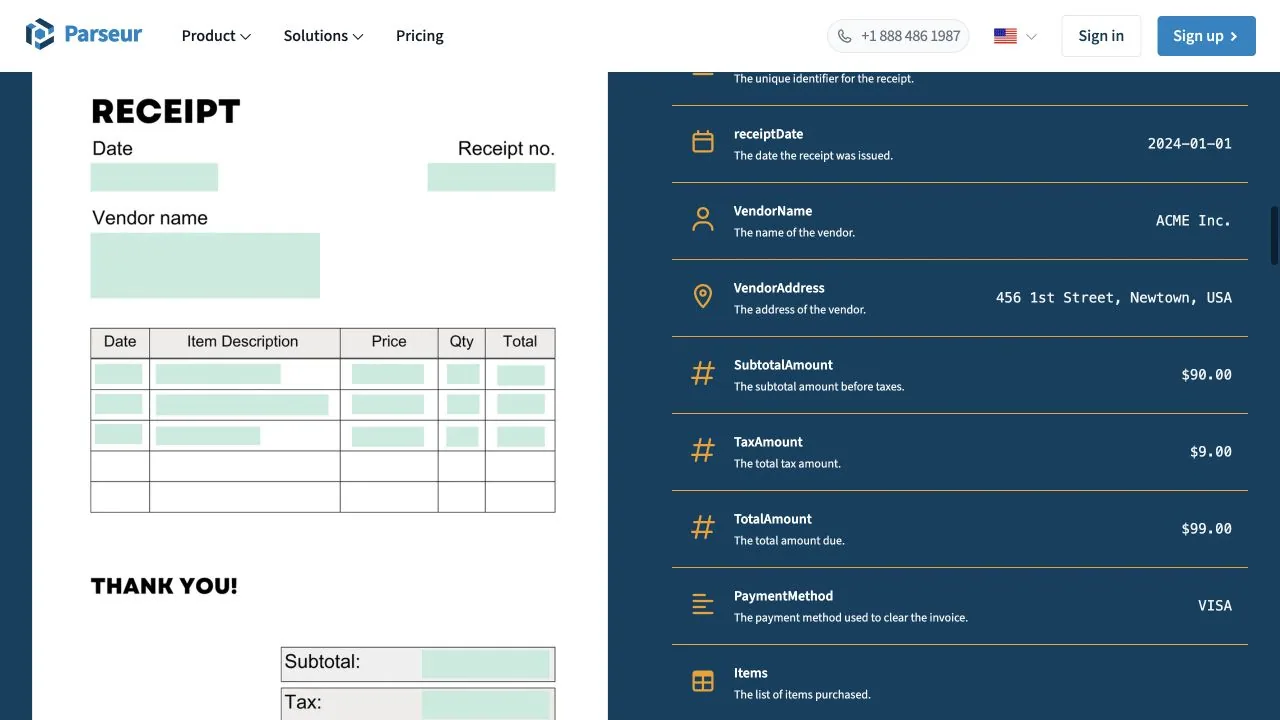
Parseur Receipt OCR is a good fit when receipts arrive repeatedly through email, uploads, an API, or automation services. It extracts requested fields and line items, then sends the structured results to Excel, CSV, Google Sheets, JSON, or connected applications.
The product's strength is routing. A business can forward documents to a Parseur mailbox, define the data it needs, and send the output onward through tools such as Zapier, Make, n8n, or a webhook. That is more useful than repeatedly downloading files when the real goal is an unattended document pipeline.
Price: Free for up to 20 pages per month; paid plans use volume-based monthly or annual pricing.
When Parseur is a good choice
- Receipts regularly arrive by email.
- You want new data added to Google Sheets or another system automatically.
- You need custom fields or line items without building the whole workflow in code.
- Integrations matter more than a standalone spreadsheet download.
Limitations
Automation still needs monitoring. Test varied merchants, currencies, tax formats, faded thermal paper, and unusually long receipts before relying on a workflow without review. Also check which integrations and processing volumes are included in the current plan you are considering.
5. Zoho Expense: best for managed employee expenses
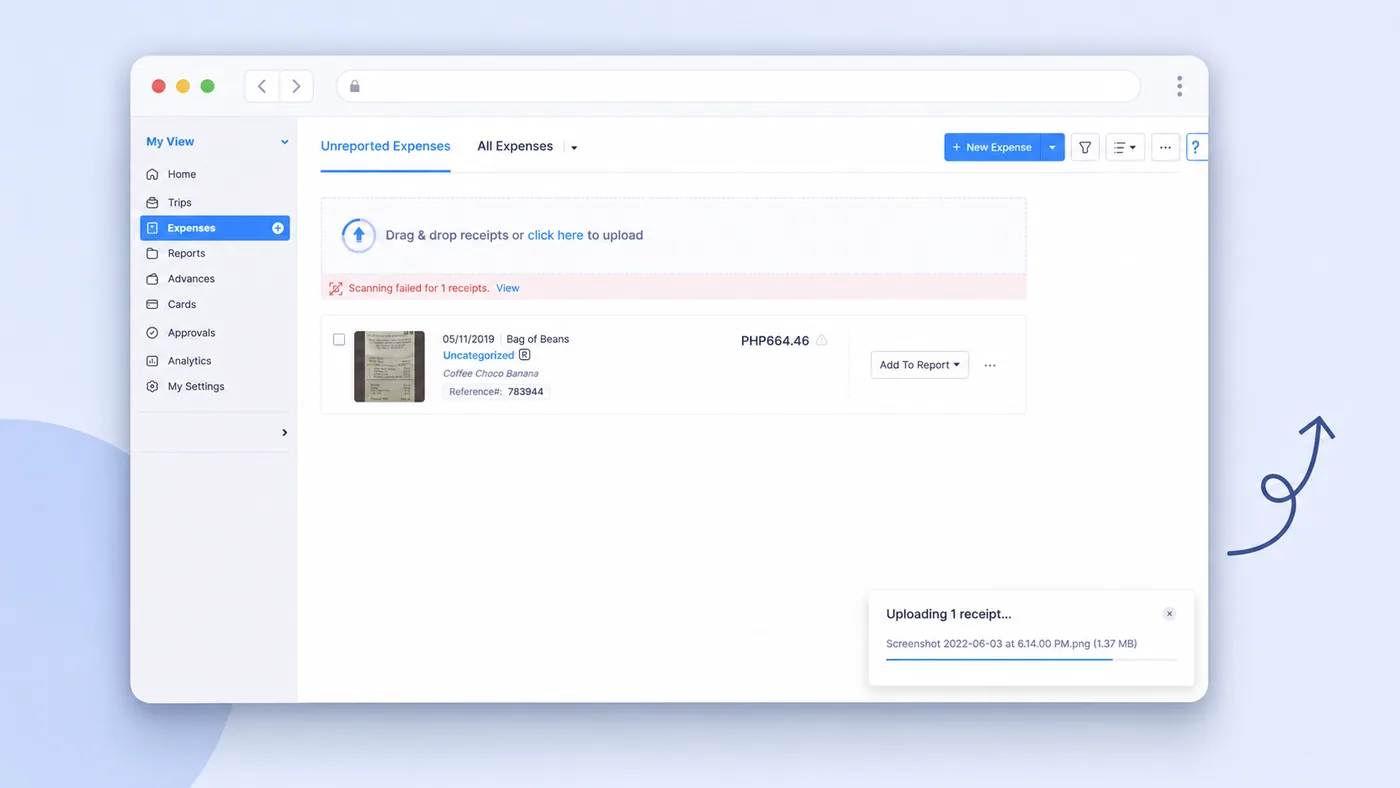
Zoho Expense Autoscan turns uploaded or emailed receipts into expenses. Its official documentation says Autoscan captures fields including date, amount, merchant, currency, and payment mode, can categorize expenses, and supports line-item extraction.
Receipts can arrive through the web app, mobile capture, email forwarding, cloud storage, or browser extensions. Once the expenses are organized into reports, Zoho supports CSV, XLS, and XLSX exports, including bulk report exports and templates.
Price: Free for up to three users; Standard costs $4 per user/month ($3 billed annually), and Premium costs $6 ($5 billed annually).
When Zoho Expense is a good choice
- Employees need to submit receipts for approval or reimbursement.
- You want receipt capture, categories, policies, reports, and accounting workflows together.
- CSV or Excel is an export from a managed expense process rather than the entire process.
- Your business already uses Zoho products.
Limitations
Zoho Expense is optimized around expenses and reports. If you want a flat item-level purchase dataset from a stack of retail receipts, verify that the exported structure contains every field and line item you require before standardizing on it.
6. Expensify: best for expense reports and configurable CSV exports
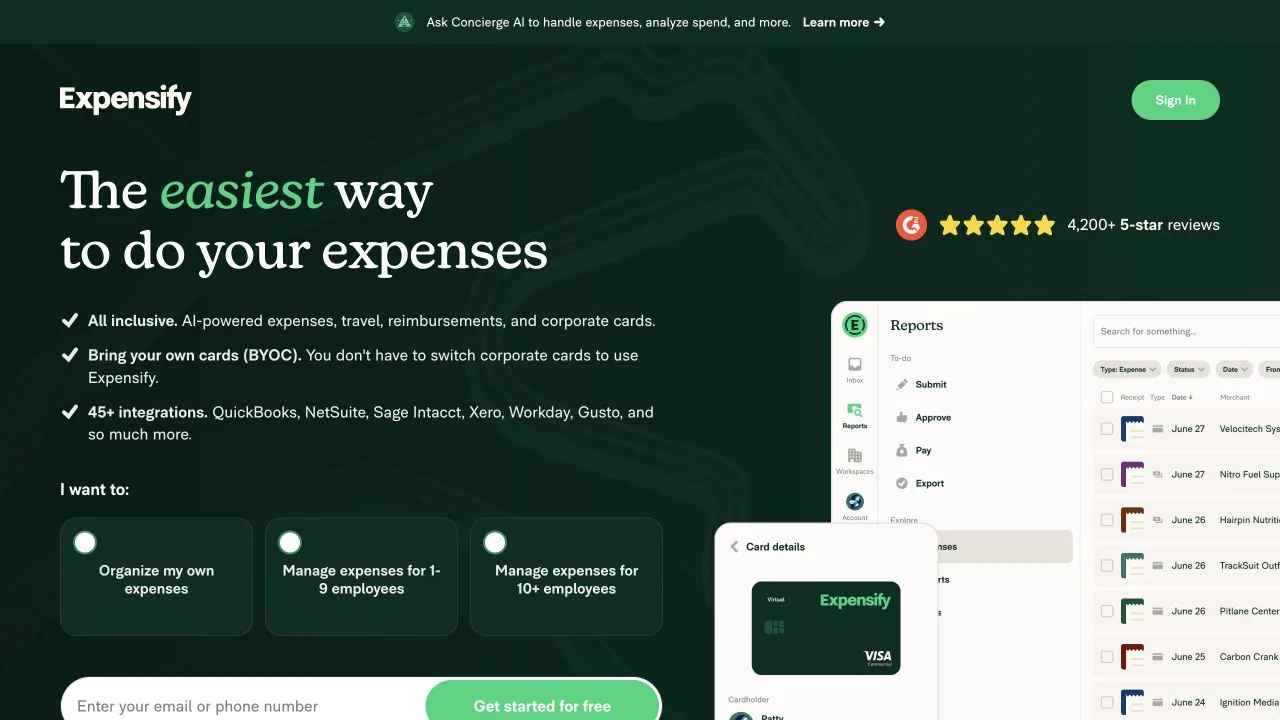
Expensify combines receipt scanning with expense creation, reports, approval, reimbursement, and accounting exports. Its SmartScan workflow reads receipt images and fills essential expense details such as merchant, date, and amount.
For teams handling many documents, Expensify supports scanning several receipts on mobile and bulk uploading receipt images or PDFs on the web. Its export tools can create a basic CSV, a fuller expense-level CSV, the current filtered view, or a custom template. Expensify's documentation also lists CSV and XLS as available formats for raw expense data.
Price: Individuals can SmartScan receipts for free; Collect costs $5 per member/month, while Control uses custom pricing.
When Expensify is a good choice
- Receipt conversion belongs inside an employee spend-management process.
- You need approvals, reports, workspace rules, and accounting exports.
- One row per expense is more important than every purchased line item.
- You want configurable CSV layouts for an existing finance system.
Limitations
Expensify is not primarily a receipt-line-item-to-spreadsheet converter. If item descriptions, quantities, and unit prices are the goal, compare a sample export with a dedicated receipt extraction tool before committing to the workflow.
7. Microsoft Excel Data from Picture: best for occasional, table-like receipts
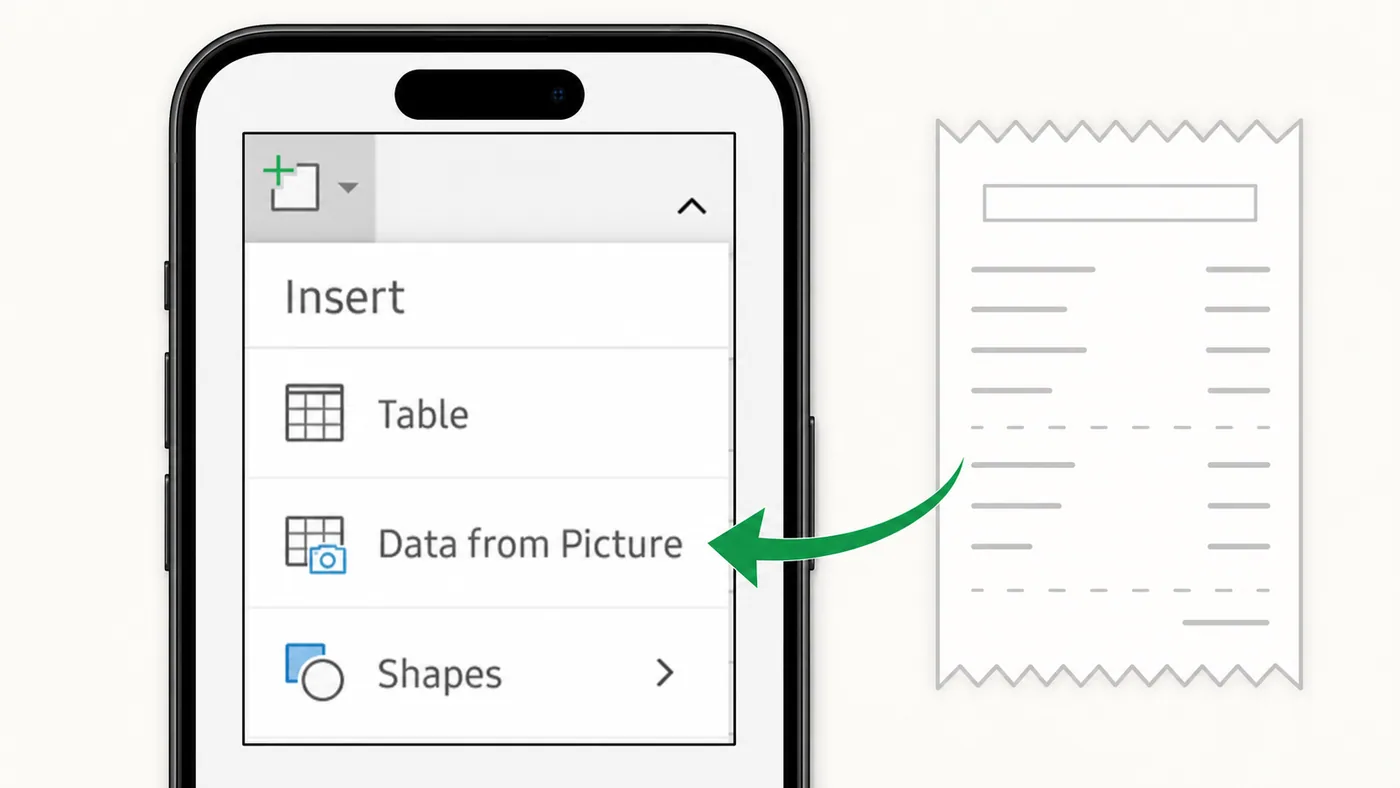
Excel's Data from Picture feature can import an image file, clipboard screenshot, or supported phone capture and convert detected tabular data into editable cells. Excel shows a review step before inserting the result into the workbook.
This is the simplest option when you already use Microsoft 365 and the receipt has a clean, grid-like layout. There is no separate export step because the result is already inside Excel.
Price: Excel is included with paid Microsoft 365 plans. Microsoft 365 Apps for business costs $8.25 per user/month with annual billing; personal and regional pricing varies.
When Excel is a good choice
- You only have a few receipts.
- The receipt resembles a clear table.
- You want the result directly in an existing workbook.
- You are willing to review and rearrange the imported cells manually.
Limitations
Data from Picture is a general table-recognition feature, not a receipt-specific parser. Receipts with centered totals, mixed font sizes, coupons, wrapped descriptions, several tax lines, or irregular spacing may need substantial cleanup. It is also not designed as an unattended batch workflow.
For a broader comparison of this feature with OCR and AI extraction, see the guide to extracting data from images into Excel.
Which tool should you choose?
Choose based on the destination and the level of detail you need:
- Choose Nanonets when receipt extraction is part of a higher-volume document workflow with APIs, validation, and integrations.
- Choose Extractify when you want several receipt photos converted into one editable line-item table and downloaded as CSV or Excel.
- Choose Veryfi when mobile capture or an embedded receipt OCR API is central to your product.
- Choose Parseur when receipts arrive through email and should flow into spreadsheets or other applications automatically.
- Choose Zoho Expense when employee expense reporting, approval, and reimbursement are the main job.
- Choose Expensify when you need spend management and configurable expense-level exports.
- Choose Excel Data from Picture for occasional, well-structured receipts that need to land in a workbook immediately.
If you are deciding between two tools, process the same representative set of receipts in both. Include a faded receipt, a long receipt, a restaurant bill with tip, a receipt with discounts, a different currency, and at least one multi-page PDF. Compare the exported spreadsheet rather than the demo screen.
How to evaluate the output
Receipt OCR is useful only when the spreadsheet can be trusted. Review these points before importing the data into accounting, inventory, reimbursement, or tax workflows.
Check totals and tax
Compare subtotal, discounts, tax, tip, and grand total with the source. Confirm whether amounts include tax and whether the tool has interpreted decimal and thousands separators correctly.
Check line-item alignment
Descriptions, quantities, unit prices, and line totals must remain on the same row. Wrapped product names are a common reason for values to shift.
Preserve the source receipt
Keep the original image or a traceable link to it. The IRS says supporting documents contain information needed to record business transactions and should be retained as long as needed to prove income or deductions.
Test the export structure
Open the CSV through Excel's import flow when identifier columns, leading zeros, dates, or regional number formats matter. Decide whether one row should represent a receipt, an expense, or a purchased item before sending the file downstream.
Review sensitive information
Receipts can contain employee names, locations, payment details, loyalty identifiers, and purchase histories. Check retention, access, deletion, and processing terms before uploading financial documents to any service.
Frequently asked questions
Can receipts be converted directly to Excel?
Yes. Tools such as Nanonets, Extractify, Veryfi, Parseur, Zoho Expense, and Excel itself can produce or feed spreadsheet-compatible data. The important question is whether the output contains one row per receipt or one row per purchased item.
What is the best tool for extracting receipt line items?
Use a receipt-specific extraction tool that explicitly supports item descriptions, quantities, unit prices, taxes, and line totals. Extractify, Nanonets, Veryfi, and Parseur are stronger candidates for this requirement than general expense-report exporters. Always test your own receipt layouts.
Can I combine multiple receipts into one CSV?
Yes, but the workflow varies. Extractify can process several receipt images and combine their line items in one editable table. Expense platforms such as Zoho Expense and Expensify can export multiple expenses or reports. Automation platforms can accumulate extracted receipt records in a spreadsheet or database.
Is receipt OCR always accurate?
No. Faded thermal paper, blur, glare, torn edges, handwriting, unusual currencies, coupons, and wrapped item names can all cause errors. Review consequential values and compare calculated totals with the original receipt.
Should I use CSV or Excel?
Use CSV for reliable system-to-system transfer and simple flat tables. Use Excel when reviewers need formatting, multiple sheets, formulas, filters, or manual cleanup. Be careful with identifiers and leading zeros because spreadsheet software may automatically reformat them.
Turn receipt capture into reliable records
Receipt conversion is moving from a convenience to a normal part of digital recordkeeping. HMRC estimated that around 780,000 self-employed people and landlords would enter Making Tax Digital for Income Tax from April 2026, with another 970,000 joining from April 2027. Those rules apply in the UK, but the operational lesson is broader: expense information increasingly needs to be structured, reviewable, and ready for software.
For an integrated finance department, Nanonets, Zoho Expense, Expensify, or Parseur may justify their broader workflows. Veryfi is compelling for embedded mobile and API capture. Excel can handle occasional clean examples. When the practical goal is to upload one or several receipt photos, review detailed line items, and download one spreadsheet, Extractify's receipt converter provides the more direct route.