How to Extract Tables from a PDF: 6 Practical Methods Compared
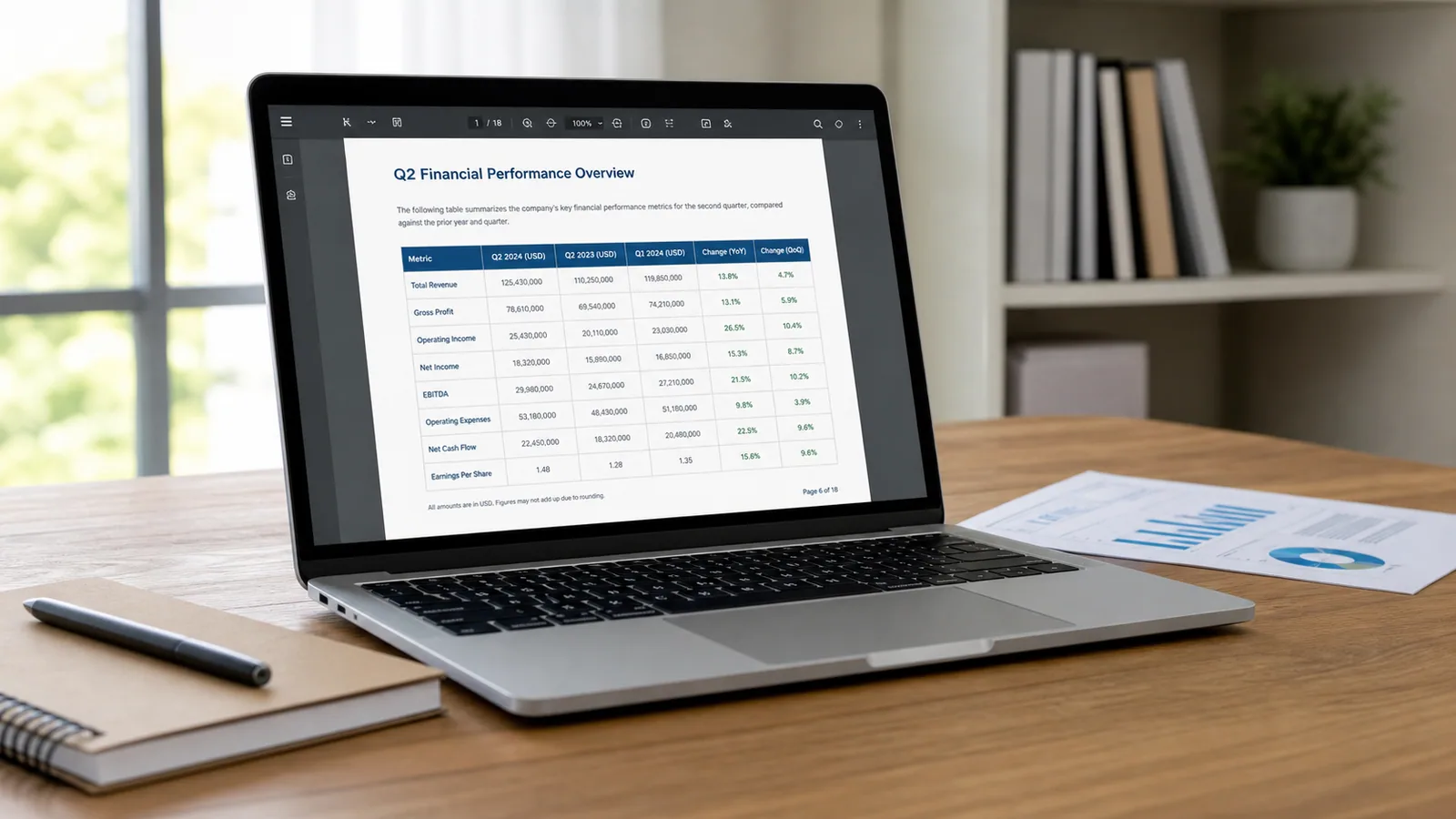
A table inside a PDF may look perfectly organized, but copying it into Excel can collapse columns, split rows, repeat headers, and turn numbers into text. That extra manual cleanup adds up quickly, especially when knowledge workers already spend roughly 20% of their time searching for and gathering information, according to McKinsey.
This guide compares six practical ways to extract tables from a PDF into Excel, CSV, or another structured format. Choose based on whether the PDF is digital or scanned, whether the table spans several pages, and whether you need a one-off conversion or a repeatable workflow.
First, identify what kind of PDF you have
Before choosing a tool, perform one quick test: try to select a word inside the PDF.
- If you can select individual text, you probably have a text-based PDF. Tools such as Power Query, Tabula, and Camelot can often read its underlying text and coordinates.
- If the entire page behaves like one image, you probably have a scanned PDF. You need optical character recognition, or OCR, before the table can become structured data.
- If the table continues across pages, you also need a method that can keep the schema consistent and combine the extracted rows.
- If cells are merged, borders are missing, or the page contains several unrelated blocks, expect some review and cleanup regardless of the tool.
We think this distinction is more useful than asking which PDF extractor is “best” in general. A tool can perform very well on a clean digital report and still be the wrong choice for a scanned statement with irregular rows.
Quick comparison of the six methods
| Method | Best for | Scanned PDFs | Multi-page workflow | Technical effort |
|---|---|---|---|---|
| Excel Power Query | Clean tables when you already work in Excel | Limited without a separate OCR step | Yes, with transformation and cleanup | Low to medium |
| Extractify | Visual, scanned, or multi-page PDF tables that should become one editable table | Yes | Yes, within the current upload limits | Low |
| Adobe Acrobat | General PDF-to-XLSX conversion | Yes, with text recognition | Yes, with workbook export settings | Low |
| Tabula | Free manual extraction from text-based PDFs | No | Page-by-page or selected areas | Low |
| Camelot | Repeatable extraction from text-based PDFs in Python | No | Yes, through code | High |
| Google Cloud Document AI | API-based document processing at business scale | Yes | Yes, subject to processor limits | High |
1. Use Excel Power Query for clean, text-based PDF tables
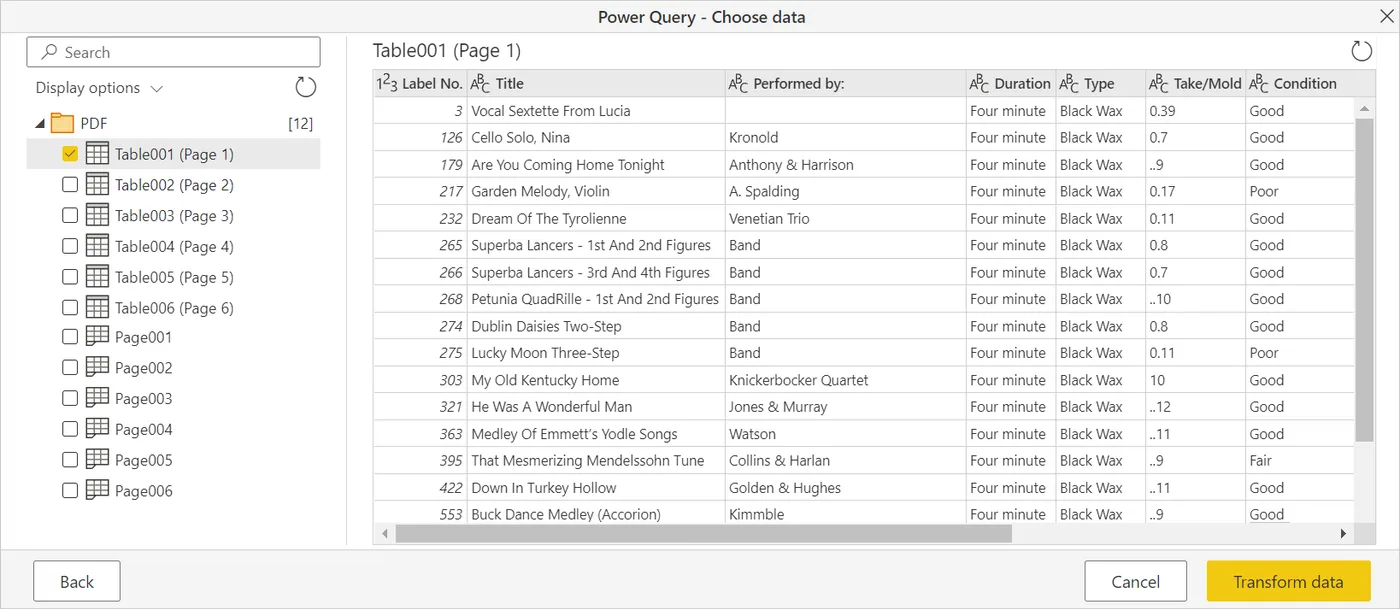
If you already use Excel and the PDF contains a clearly defined digital table, Power Query is a sensible first option. It keeps the extraction and cleanup work inside the spreadsheet environment.
Microsoft’s PDF connector documentation describes the basic workflow:
- In Excel, open the Data tab.
- Select Get Data, then From File, then From PDF.
- Choose the PDF.
- Use the Navigator to inspect the tables and pages Excel detected.
- Select Load to import a table directly, or Transform Data to clean it in Power Query first.
Power Query is especially useful when the same type of report arrives repeatedly. Once you have built transformations to remove repeated headers, rename columns, change data types, or filter unwanted rows, you can reuse those steps when the source file changes.
It can also work with tables that span several pages. Microsoft exposes page-range controls and a MultiPageTables option through the underlying Pdf.Tables function. Large documents and multi-line rows may still require extra transformations.
When Power Query is a good choice
- The PDF contains selectable text.
- The tables have consistent columns.
- You want to clean and analyze the data in Excel.
- You expect to refresh the same type of report later.
- You are comfortable making small transformations in Power Query.
Where it struggles
Power Query is less convenient when the PDF is a scan, when the table is visually irregular, or when the detected rows need extensive reconstruction. In those cases, an OCR or visual extraction tool is usually a better starting point.
2. Use Extractify for scanned or multi-page PDF tables
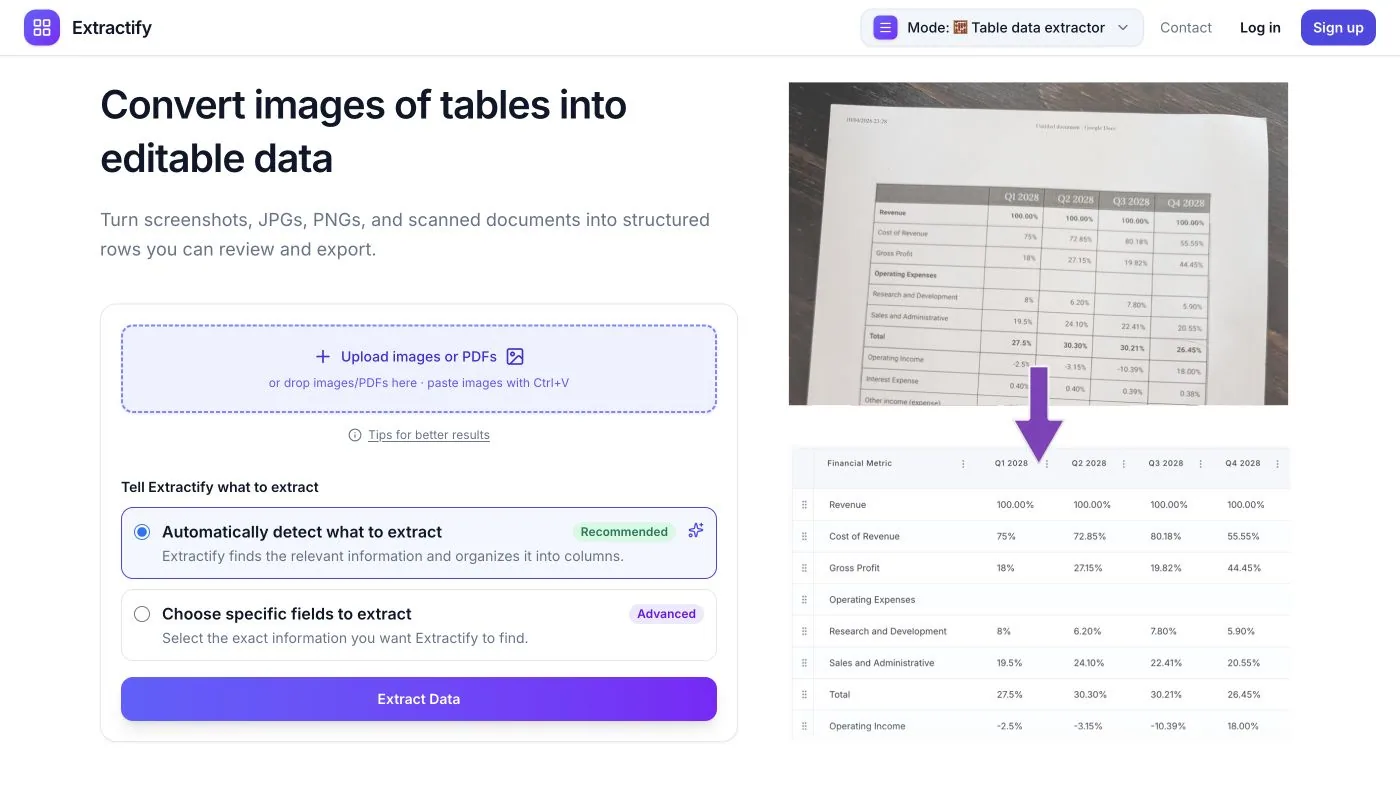
Extractify’s table data extractor is designed for situations where a PDF needs to become one editable table rather than a collection of disconnected text fragments.
You upload the PDF, and Extractify processes its pages as a batch. It reads the visible text, numbers, and layout, maps the information into consistent columns, and combines the extracted rows in one table. You can then review the result, correct individual cells, and export it to CSV or Excel.
This is particularly useful when one table continues across multiple PDF pages. Instead of exporting every page to a separate worksheet and joining the pieces manually, you can keep the same column structure across the document and consolidate the rows in the extraction result.
How to extract a PDF table with Extractify
- Open the table data extractor.
- Upload your PDF.
- Let Extractify auto-detect the columns, or specify the exact fields you need.
- Check that each visible table row has become one output row.
- Review uncertain values, repeated headers, totals, and page breaks.
- Export the finished table to CSV or Excel.
If you only want selected fields, such as date, invoice number, description, quantity, and total, define those columns before extraction. This can be more useful than recreating every visual element in the original table.
When Extractify is a good choice
- The PDF is scanned or image-based.
- A table continues across multiple pages.
- You want all pages combined into one editable result.
- The layout is not clean enough for copy and paste.
- You prefer a visual workflow over code.
- You need to review and correct the table before export.
What to check
No extraction system should turn review into an afterthought. Check column alignment, decimal separators, dates, negative values, subtotal rows, and any text that wraps across lines. For long documents, also confirm that headers were not inserted as ordinary data rows.
3. Export the PDF to Excel with Adobe Acrobat

Adobe Acrobat is a practical option when you want to convert an entire PDF into an Excel workbook with minimal setup.
Adobe’s PDF-to-Excel workflow exports PDFs to XLSX and lets you choose whether the workbook creates a worksheet for each table, each page, or the entire document. Its conversion settings also include numeric separators and text recognition for image-based content.
The workflow is straightforward:
- Open the PDF in Acrobat.
- Select Convert.
- Choose Microsoft Excel, then XLSX.
- Open Settings if you need to change worksheet, number-format, or text-recognition options.
- Convert and save the workbook.
When Acrobat is a good choice
- You already have access to Acrobat’s export tools.
- You want a fast whole-document conversion.
- The PDF mixes text, tables, and scanned pages.
- Separate worksheets per table or page are acceptable.
- You need a familiar desktop interface.
Where it can create more cleanup
Acrobat is converting a document into a workbook, not necessarily building one normalized dataset. A long report may produce several sheets, repeated headers, blank columns, or formatting that looks similar to the PDF but is awkward to analyze.
If your goal is one consolidated table with a fixed schema, check how much joining and cleanup the exported workbook requires.
4. Use Tabula for free, manual table selection
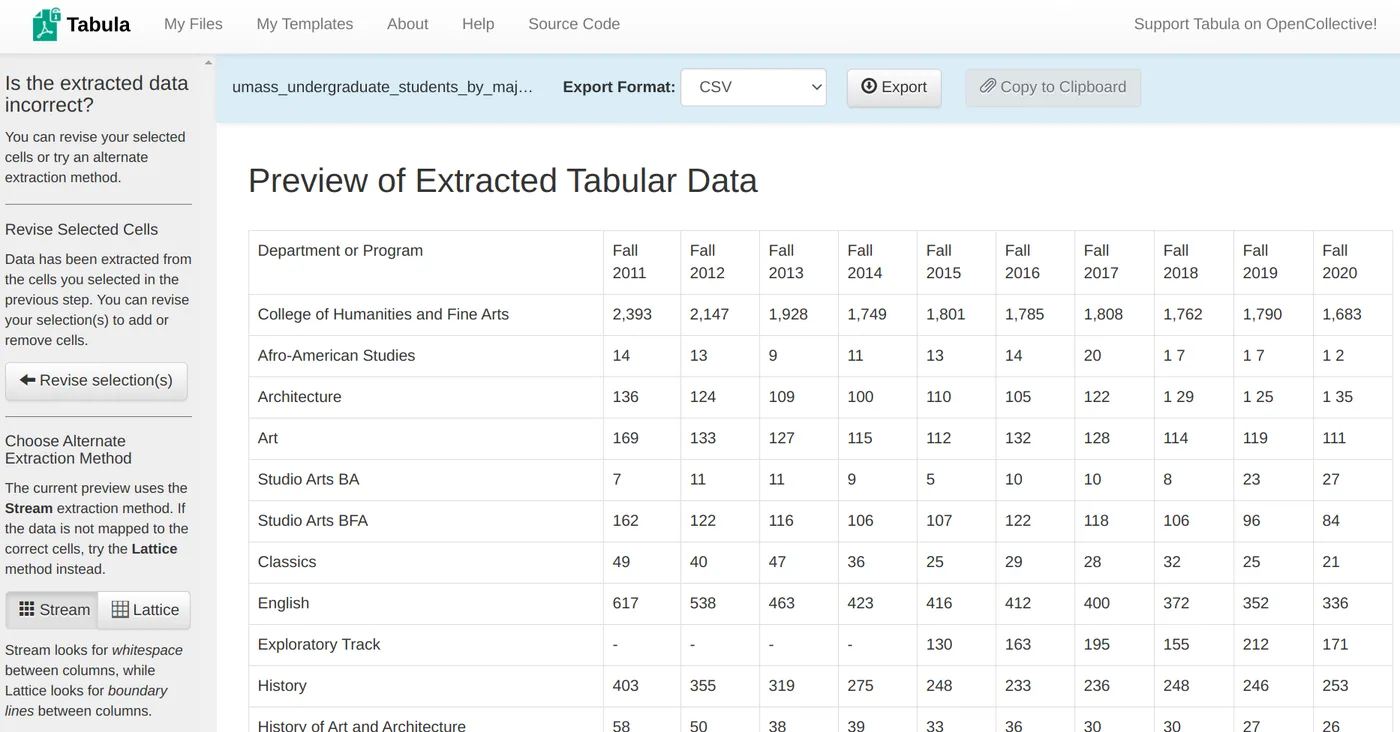
Tabula is a free, open-source desktop tool for extracting tables from text-based PDFs. It works on Windows, macOS, and Linux.
Its main advantage is control. You open a PDF, draw a box around the exact table you want, preview the detected rows and columns, adjust the selection if necessary, and export the result.
The process is:
- Install and run Tabula.
- Upload a PDF.
- Navigate to the relevant page.
- Draw a selection around the table.
- Preview the extraction.
- Export the result to CSV or another supported format.
When Tabula is a good choice
- You need a free tool.
- The PDF contains selectable text.
- You know exactly which table or page region you need.
- You are comfortable checking and adjusting the extraction manually.
- The document contains only a few tables.
Important limitation
Tabula does not work on scanned PDFs. If you cannot select text in the original document, run OCR first or choose a method that can interpret image-based pages.
Tabula is also less efficient when dozens of pages require different selections. It is excellent for focused extraction, but a repetitive production workflow may call for automation.
5. Automate text-based PDF extraction with Camelot
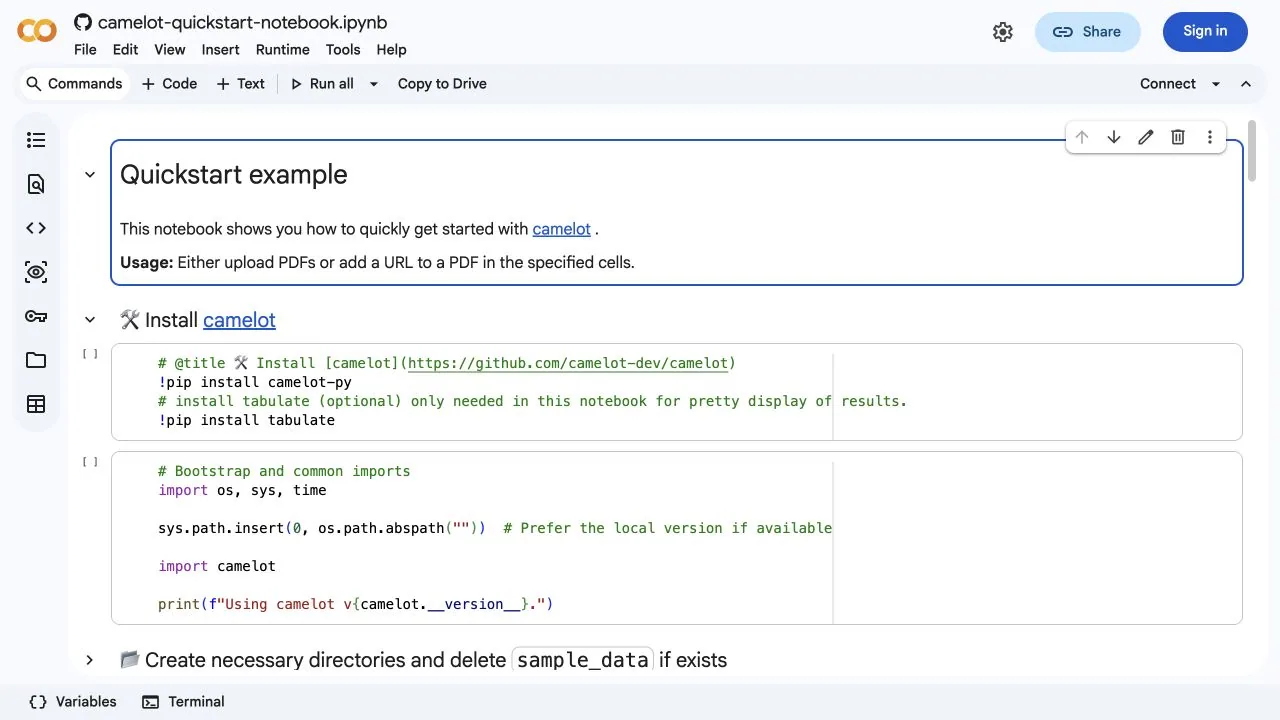
Camelot is a Python library for extracting tables from text-based PDFs. It is a strong choice when a developer or analyst wants a repeatable pipeline and more control over how table boundaries are detected.
A basic extraction can be concise:
import camelot

tables = camelot.read_pdf("report.pdf", pages="all")
tables.export("report-tables.csv", f="csv")
Camelot supports several parsing approaches for different table structures. It can return tables as pandas DataFrames, expose parsing metrics, and export to formats including CSV, Excel, JSON, HTML, Markdown, and SQLite.
When Camelot is a good choice
- You work in Python.
- The PDF contains selectable text.
- You need to process many documents with similar layouts.
- You want programmatic control over pages, table areas, columns, and parsing behavior.
- The extracted tables will feed an analysis or data pipeline.
Important limitation
Camelot’s documentation states that it only works directly with text-based PDFs, not scanned documents. Image-based files require an OCR step or another preprocessing workflow.
There is also a setup and maintenance cost. A script that works for one report layout may need different parser settings for another. Camelot is powerful when extraction logic belongs in code, but it is excessive for someone who only needs one table today.
6. Build a scalable pipeline with Google Cloud Document AI
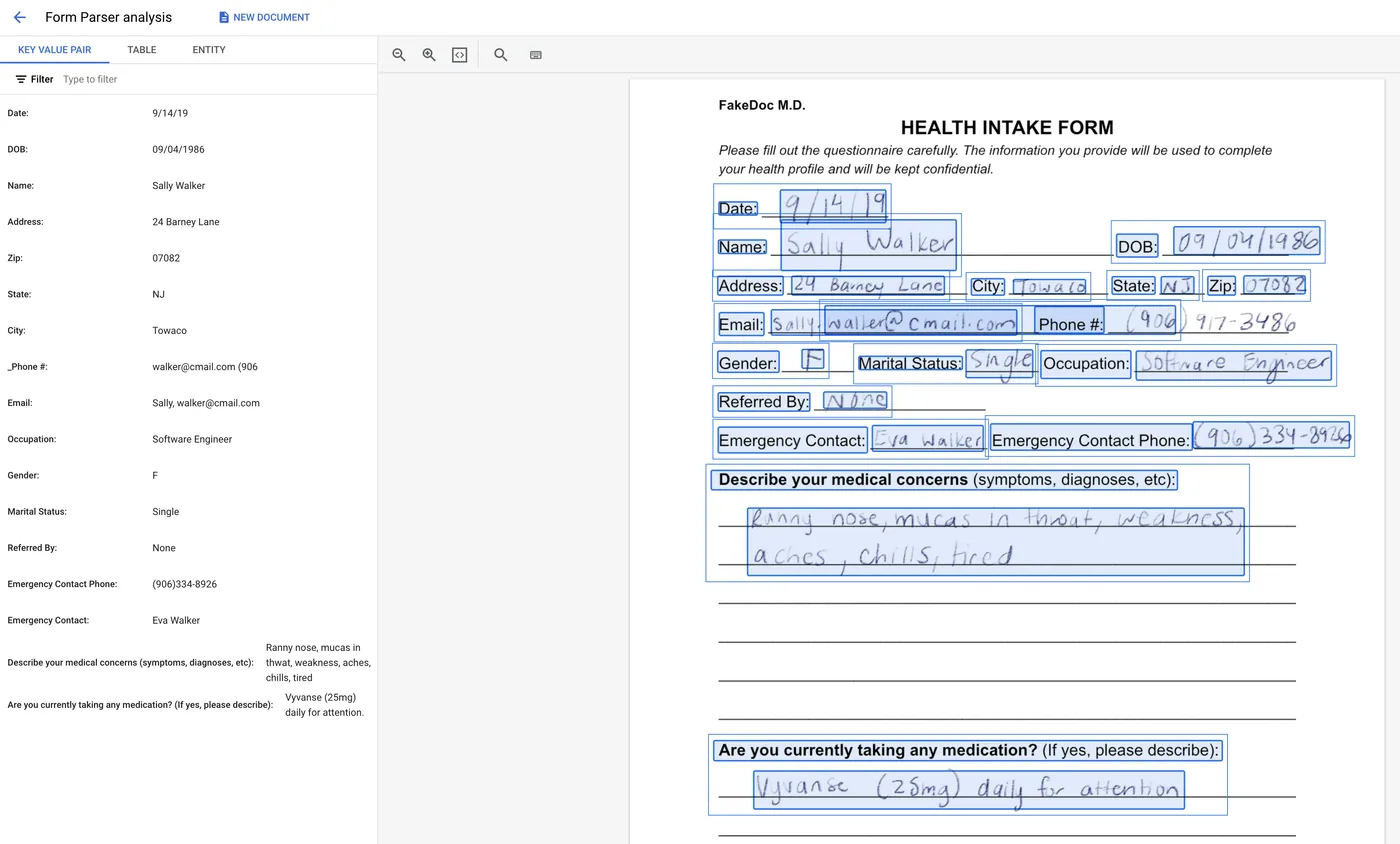
Google Cloud Document AI Form Parser detects text, key-value pairs, tables, and selection marks in images and PDFs. Unlike text-only table libraries, it includes OCR and can process scanned documents.
This option is less like a desktop converter and more like infrastructure. You create a processor in Google Cloud, send documents through the console or API, and transform the structured response into the format your system needs.
When Document AI is a good choice
- PDF extraction is part of a larger application or data pipeline.
- You need an API rather than a manual interface.
- Documents may be scanned.
- You process enough files to justify cloud configuration, monitoring, and billing.
- You need structured output that can feed databases or downstream workflows.
What to plan for
The Form Parser is best suited to conventional tables without cells that span rows or columns. More complex or domain-specific documents may require a custom extractor.
You also need code to turn the API response into a clean CSV, Excel workbook, or normalized database table. Review the current Document AI page limits, pricing, supported regions, and data-handling requirements before choosing it for production.
For occasional extraction, this is usually more infrastructure than necessary. For a high-volume document workflow owned by a technical team, that infrastructure can be the point.
Which PDF table extraction method should you choose?
Start with the shape of the problem:
- Use Excel Power Query when the PDF is text-based, the table is clean, and Excel is already your destination.
- Use Extractify when the PDF is scanned, visually complex, or spread over multiple pages that should become one editable table.
- Use Adobe Acrobat when you want a familiar whole-document conversion to XLSX and do not mind workbook cleanup.
- Use Tabula when you want a free way to select and export a few tables from a text-based PDF.
- Use Camelot when you want a repeatable Python workflow for digital PDFs.
- Use Google Cloud Document AI when extraction needs to become part of a scalable application or cloud data pipeline.
If you are unsure whether the PDF is text-based or scanned, try selecting a word. If that fails, remove Tabula and standard Camelot from the shortlist unless you plan to add OCR.
How to improve the extracted table
The extraction step is only successful if the resulting data can be trusted. Before using it, run a short quality check.
Check the schema
Confirm that every page uses the same columns and that column names are unique. If the original table changes structure halfway through the document, decide whether the results should be split or mapped into a shared schema.
Remove repeated page elements
Multi-page PDFs often repeat headers, footers, page numbers, and report titles. Make sure these did not become data rows.
Verify high-risk values
Pay particular attention to:
- decimal and thousands separators;
- dates with ambiguous day and month order;
- negative numbers shown with parentheses;
- percentages and currency symbols;
- wrapped descriptions;
- merged cells;
- subtotals and grand totals;
- blank cells that may have inherited a value visually.
Compare totals
When the source includes totals, compare them with sums calculated from the extracted rows. A matching total does not prove that every cell is correct, but a mismatch is a useful warning.
Keep the source PDF
Store the original document alongside the extracted file or record its source. That makes later checks possible and prevents the spreadsheet from becoming detached from its evidence.
For related workflows, see the guides to extracting data from images into Excel, turning screenshots into structured data, extracting data from charts and graphs, and converting receipt images to Excel automatically.
Frequently asked questions
Can I copy a table directly from a PDF into Excel?
Sometimes. A clean text-based table may paste correctly, but merged cells, wrapped lines, and complex spacing often break the structure. Use direct copy and paste for small, simple tables where manual checking is faster than configuring another tool.
How do I extract a table from a scanned PDF?
Use a method with OCR or visual document understanding, such as Extractify, Adobe Acrobat with text recognition, or Google Cloud Document AI. Text-only tools cannot interpret a scanned page until OCR has created machine-readable text.
How do I combine a table that spans multiple PDF pages?
Choose a method that preserves one schema across the pages. Extractify can process PDF pages as one batch and consolidate the detected rows in an editable table. Power Query can also combine multi-page results, although repeated headers and misaligned rows may need transformation steps.
Can a PDF table be converted to CSV?
Yes. Extractify, Tabula, Camelot, and many document-processing tools can produce CSV directly. Excel and Acrobat can first create an XLSX workbook, which you can then save as CSV.
Is PDF table extraction always accurate?
No. Accuracy depends on scan quality, font size, table structure, page rotation, merged cells, and the extraction method. Always review the output before using it for financial, legal, inventory, or other consequential decisions.
Turn the PDF into data you can actually use
The best method is not the one that recreates the PDF most faithfully. It is the one that produces a table you can sort, validate, analyze, and reuse with the least unnecessary cleanup.
Microsoft’s 2023 Work Trend Index found that the average Microsoft 365 user spent 57% of their time communicating and 43% creating. Reducing manual table reconstruction will not reverse that ratio on its own, but it does protect more time for analyzing and using the data rather than retyping it.
For a clean digital report, Excel Power Query or Tabula may be enough. For a coded pipeline, Camelot or Document AI offers more control. For a scanned or multi-page PDF that should become one consolidated table, try Extractify’s table data extractor, review the rows, and export the result to CSV or Excel.