Convert invoices into editable Excel spreadsheets
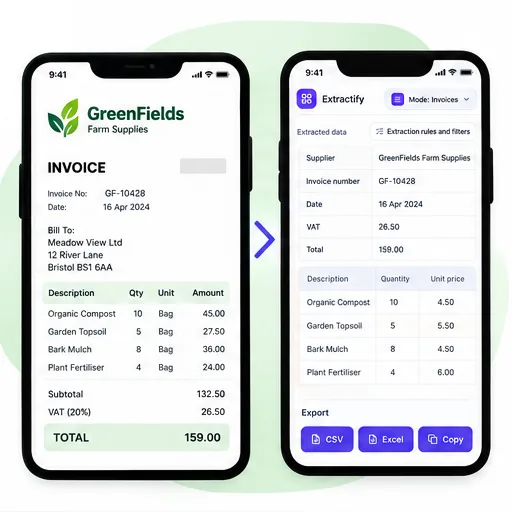
Upload invoice PDFs, scans, or photos and turn them into editable Excel data.

What invoice data is added to Excel?
- Supplier name and invoice number
- Invoice date and due date
- Products or services
- Quantities, prices, and taxes
- Subtotal and total amount
Check the results, then download your Excel or CSV file.

How invoice-to-Excel conversion works
- 📄Step 1
Upload invoice PDFs, images, or a mixed batch
- 🔎Step 2
Extractify identifies invoice fields and reconstructs line-item rows
- ✍️Step 3
Compare the editable result with the source and correct ambiguous values
- 📊Step 4
Download an Excel workbook or CSV for reporting and import
Why convert invoices to Excel?
Accounts-payable teams · Bookkeepers and accounting practices · Procurement and operations teams · Small-business owners · Analysts building spend reports
Invoices often arrive in incompatible layouts: a digital PDF from one supplier, a scan from another, and a phone photo from a third. Copying each invoice number, date, tax amount, and product row into Excel is slow and makes it easy to place a value in the wrong column.
This converter creates consistent spreadsheet fields across those layouts. Invoice summaries and item-level details remain structured for filtering, reconciliation, pivot tables, or import preparation. The source invoice is still the authority: review unclear scans, handwritten changes, unusual tax treatments, credits, and totals before posting the information to an accounting system.

FAQ
Can I convert a PDF invoice directly to Excel?
Yes. Upload a digital or scanned PDF invoice and Extractify converts the visible invoice fields and line items into editable tables. You can review the result and download an XLSX workbook or CSV instead of copying text from the PDF manually.
Does the Excel file include individual invoice line items?
Yes. Product or service descriptions, quantities, unit prices, tax values, and line totals are returned as individual rows when they are visible. Invoice-level information such as supplier, invoice number, dates, subtotal, and final total is kept as document data rather than being mistaken for another item.
Can several invoices be combined into one workbook?
Yes. You can upload multiple invoice files in one extraction. Extractify keeps the documents distinguishable while combining their summaries and line items into consistent tables, which is useful for monthly invoice registers or supplier-spend analysis.
Can I edit the extracted invoice before downloading Excel?
Yes. The extracted cells are displayed in an editable review interface. Correct supplier names, dates, descriptions, quantities, tax amounts, or totals while comparing them with the original invoice, then export the reviewed version.
Will Excel totals and formulas be created automatically?
The export contains the values read from the invoice in spreadsheet columns. Printed totals are preserved as extracted values, but you should add or verify any formulas needed for your own workbook. This prevents a generated calculation from silently replacing the amount stated by the supplier.
Is XLSX or CSV better for invoice data?
Use XLSX when people need to review multiple tables in one workbook. CSV is useful for a single flat table or an import process that requires comma-separated rows. Both formats remain editable after download.