Create Google Sheets inventory from shelf photos
Extract visible shelf products into consistent rows, review the results, and import the downloaded XLSX or CSV file into Google Sheets.

Build Google Sheets-ready inventory columns for:
- Product and brand
- Visible quantity or number of facings
- SKU, barcode, size, color, or flavor
- Price and promotion
- Store, aisle, shelf, and image source
- Notes and review status
Import the reviewed XLSX or CSV into a shared Google Sheet.
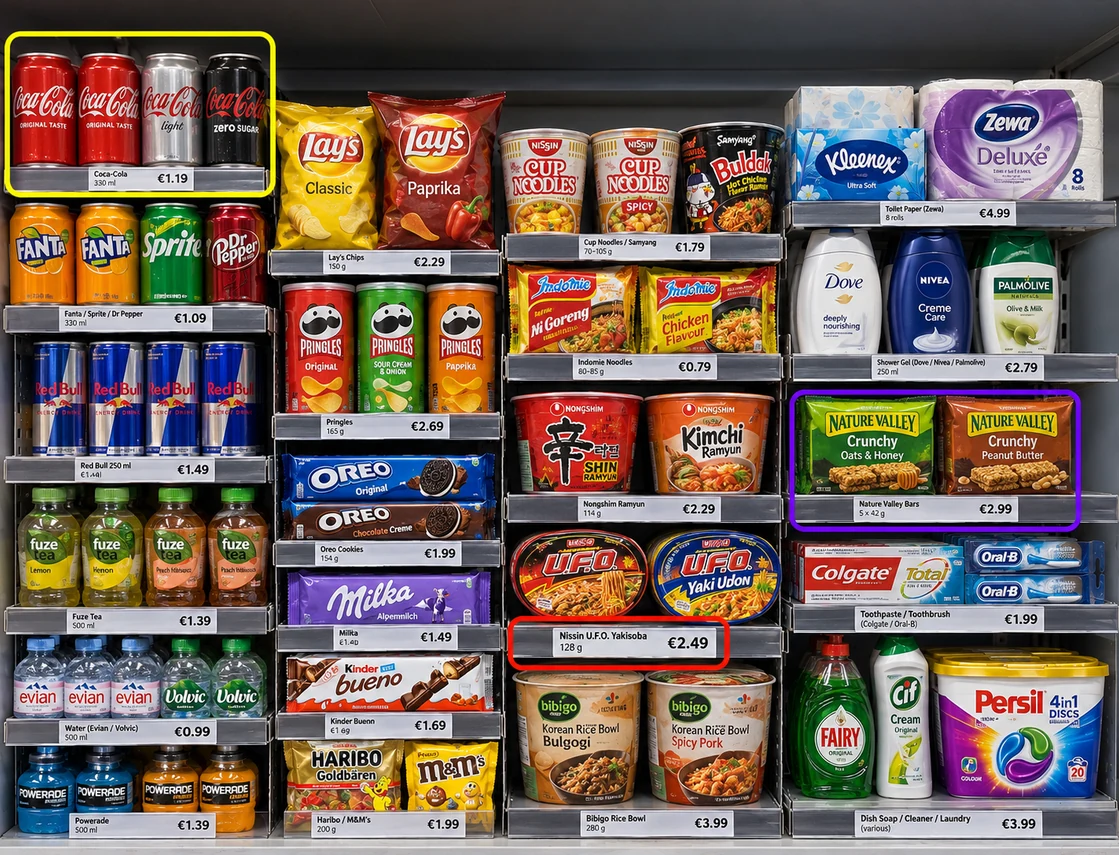
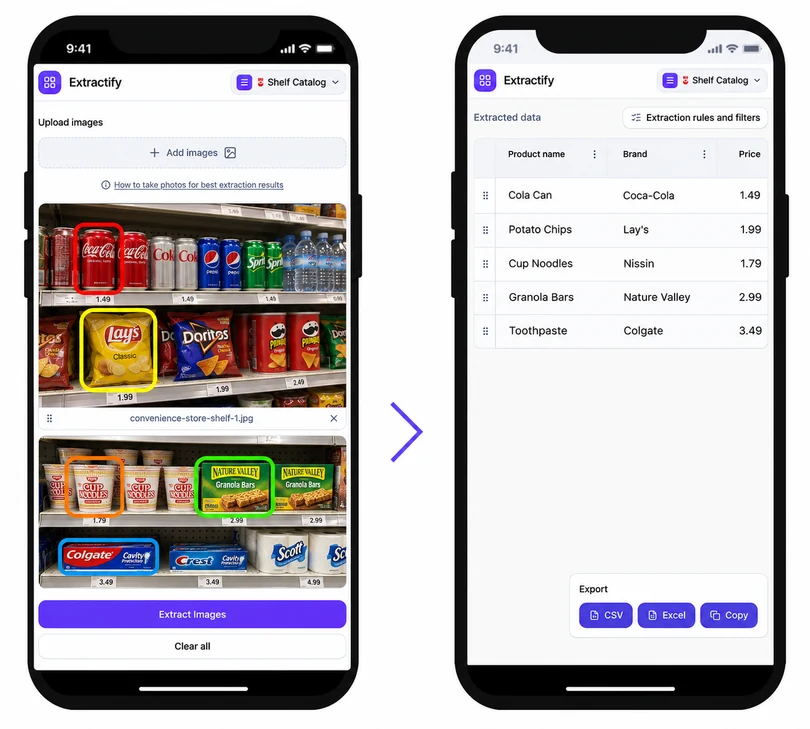
From shelf photo to Google Sheets
- 📤Step 1
Upload clear shelf photos or a photo batch
- 🧠Step 2
Extract visible products and organize them into columns
- ✅Step 3
Check labels, counts, prices, and shelf references
- 📗Step 4
Download XLSX or CSV and import it into Google Sheets
Who manages shelf inventory in Google Sheets?
Independent retailers · Multi-location store teams · Field merchandisers · Operations coordinators · Inventory auditors
Google Sheets is often used as a shared count sheet, replenishment tracker, or lightweight store-audit database. The difficult part is turning many shelf photos into consistent rows without copying each label and count by hand.
Extractify prepares the structured data first. After import, collaborators can assign owners, compare locations, add reorder formulas, and build summaries. The current workflow uses a downloaded XLSX or CSV file, so it does not require access to your Google account or existing spreadsheets.

FAQ
Can Extractify send shelf inventory directly to Google Sheets?
The workflow produces an XLSX or CSV file that you can open or import in Google Sheets. It does not need permission to access your Google account.
Can I combine inventory from several stores?
Yes. Include store, aisle, shelf, and image columns so each extracted row remains attributable when several locations are combined in one Sheet.
Can coworkers edit the inventory after import?
Yes. Once the file is imported into Google Sheets, normal sharing, comments, formulas, filters, and protected ranges are available through Google Sheets.
What file format should I import into Google Sheets?
XLSX is convenient when you want workbook formatting, while CSV is a simple choice for one flat table or an automated import process.
Does a shelf photo show total store stock?
Not necessarily. It shows the products visible in the image. Backstock, products behind the first facing, and obstructed labels should be verified separately for a complete stock-on-hand count.