Convert bank statements to Google Sheets
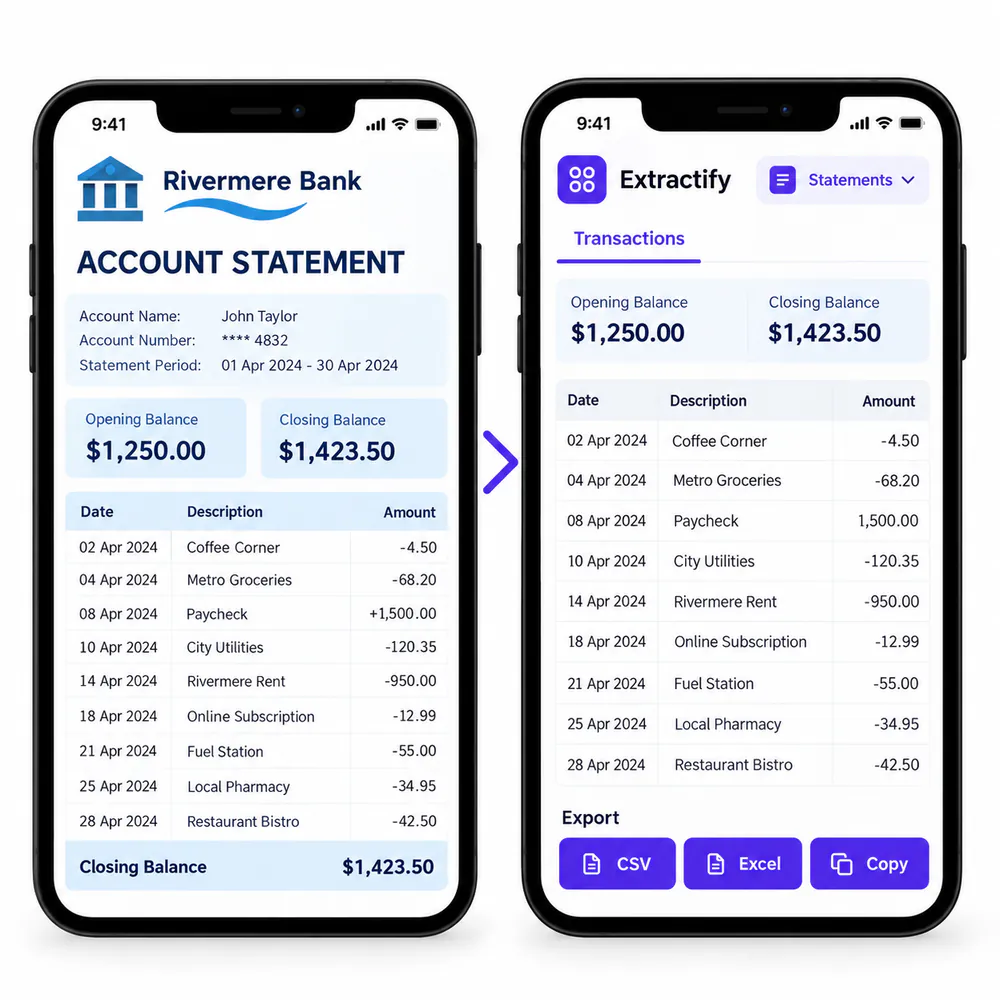
Extract transactions and balances, then download a file ready for Google Sheets.

What data is prepared for Google Sheets?
- Bank and account details
- Statement period and balances
- Transaction dates and descriptions
- Debit and credit amounts
- Consistent columns across statements
Review the data, then open the downloaded file in Google Sheets.

From bank statement to Google Sheets
- 📤Step 1
Upload bank statement PDFs or images
- 🏦Step 2
Extract statement details, balances, and transactions
- ✅Step 3
Review and edit the extracted values
- 🟢Step 4
Download an XLSX or CSV file and open it in Google Sheets
Why use bank statement data in Google Sheets?
Small-business owners · Bookkeepers · Finance teams · Project managers · Independent professionals
Google Sheets is useful for shared cash trackers, expense reviews, transaction categorization, and lightweight financial reporting. Extracting the statement first avoids copying each transaction from a PDF by hand.
Extractify does not need access to your Google account. Download the reviewed XLSX or CSV file, open it in Google Sheets, and then add your own categories, formulas, notes, and sharing permissions.

FAQ
Can Google Sheets open the exported bank statement?
Yes. Download the data as an XLSX or CSV file, then open or import it in Google Sheets.
Does Extractify connect to my Google account?
No. A Google account connection is not required. You decide where to upload the downloaded file.
Should I download XLSX or CSV?
Use XLSX when you want statement summaries and transactions in one workbook. Use CSV when you only need one flat table.
Can I add categories and formulas in Google Sheets?
Yes. After opening the file in Google Sheets, add any categories, formulas, notes, or custom columns you need.
Can I process statements from several accounts?
Yes. Upload the statements together and keep the bank and account fields in the exported data so the rows can be filtered afterward.
Can I correct a transaction before downloading?
Yes. Review and edit the extracted transactions and statement details before export.