Turn receipts into rows for Google Sheets
Extract purchase data from receipt images, review it in an editable table, then download an XLSX or CSV file you can import into Google Sheets.

Receipt data ready for Google Sheets:
- Supplier, date, receipt number, and currency
- Itemized purchases, quantities, and prices
- Discounts, tips, fees, and totals when shown
- Consistent columns across every receipt
Download the file, then open it in Google Sheets. No Google account connection required.
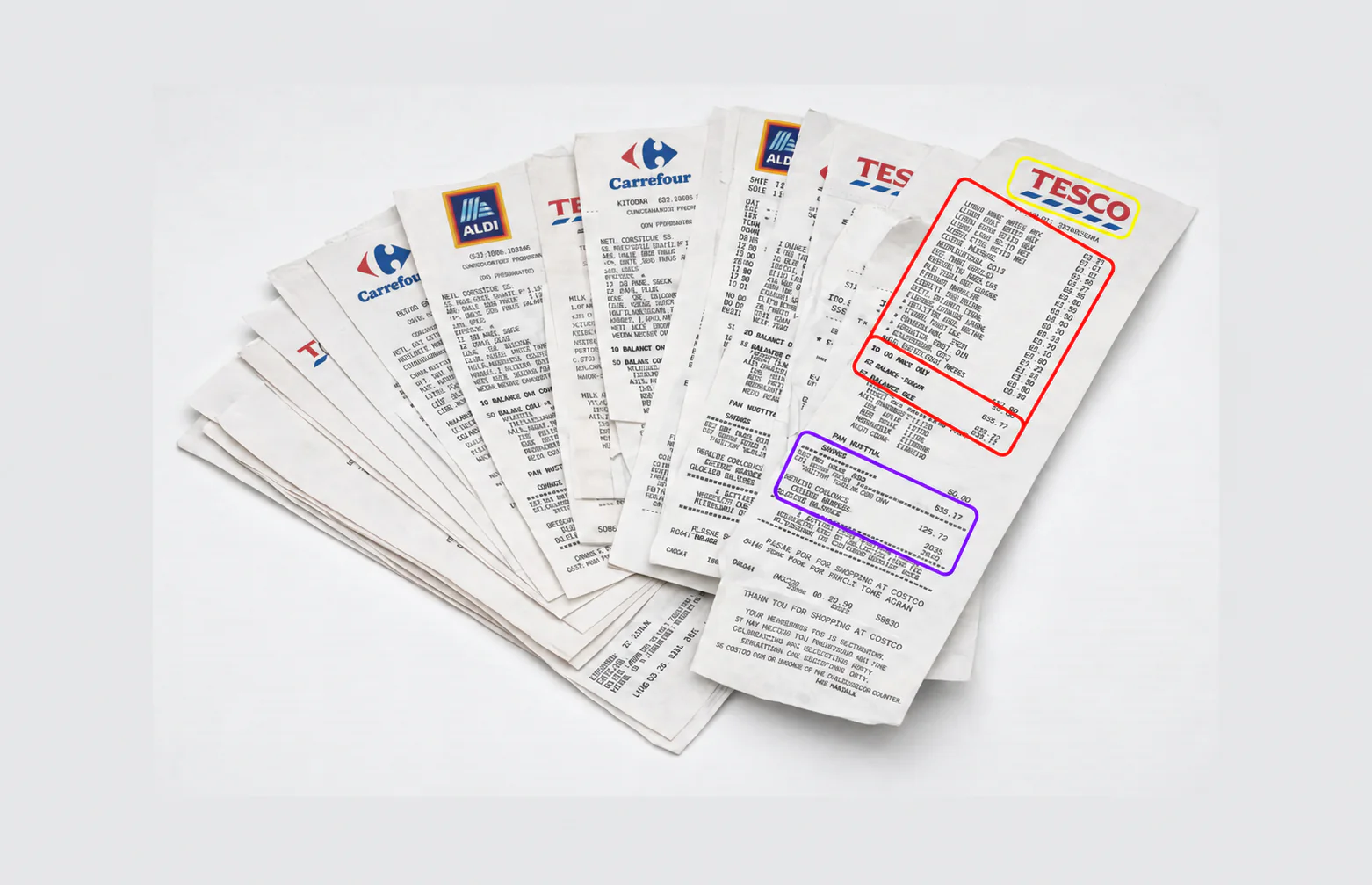
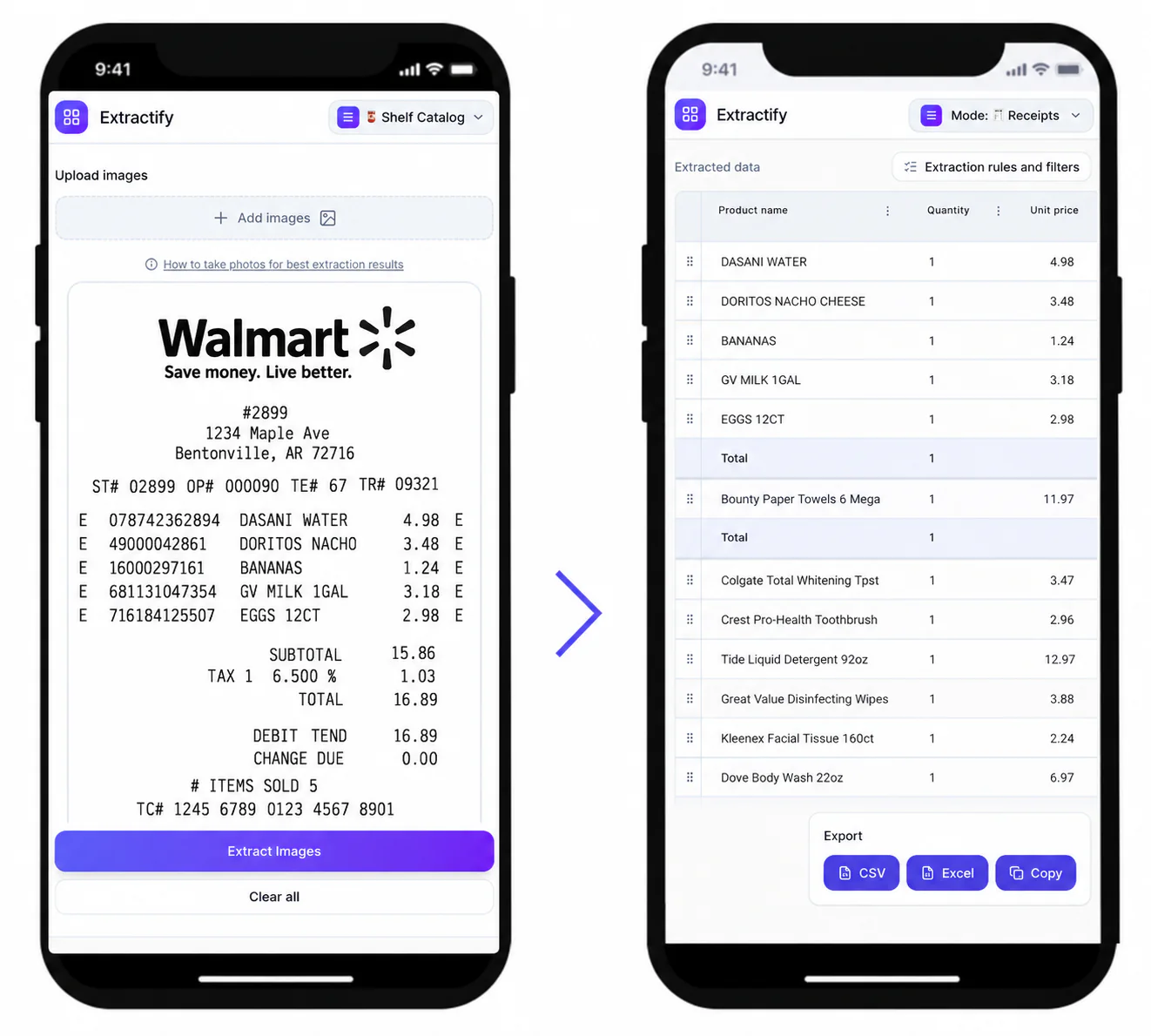
From receipt photo to Google Sheets
- 📤Step 1
Upload receipt images or PDFs to the receipt workspace
- 🧾Step 2
Review the detected receipts, line items, and totals
- ⬇️Step 3
Download the XLSX workbook or the CSV table you need
- 🟢Step 4
In Google Sheets, import or open the downloaded file
Why teams keep receipt data in Google Sheets
Distributed teams · Operations coordinators · Project managers · Bookkeepers · Expense reviewers
Google Sheets is convenient for shared expense trackers, project-cost logs, reimbursement queues, and lightweight purchasing reports. A structured import avoids copying each merchant, date, product, and amount from a photo by hand.
After import, you can add your own approval status, owner, cost center, notes, formulas, and sharing permissions. Because Extractify exports standard XLSX and CSV files rather than writing directly into Google Drive, you stay in control of the destination spreadsheet and its access settings.

FAQ
Does Extractify connect directly to my Google account?
No direct Google account connection is required. Extract the receipts, download an XLSX or CSV file, and then open or import that file in Google Sheets.
Should I use XLSX or CSV with Google Sheets?
Use XLSX when you want the receipt-summary and line-item tables in one workbook. Use CSV when you only need one flat table or are appending data to an existing Sheet.
Can I upload several receipts for one shared Sheet?
Yes. Process the receipts together and export a consistent batch. Each receipt remains a separate document while its purchases are available as individual line-item rows.
How do I scan receipts into Google Sheets?
Upload your receipt photos or PDFs to Extractify, review the merchant, date, totals, and line items, then download an XLSX or CSV file and open it in Google Sheets. You do not need to retype the receipt or connect your Google account.
Can I add my own Google Sheets columns afterward?
Yes. Once the file is in Google Sheets, add formulas, dropdowns, project codes, approval fields, or any other columns your process uses.
Does the import preserve receipt images?
The spreadsheet export contains structured receipt data, not embedded source photos. Keep the original files according to your own expense-record and retention requirements.