 VS
Extractify vs ChatGPT
ChatGPT is great for one file. Extractify is faster for the other 99: batches of photos, screenshots and PDFs turned into one clean Excel file.
Updated Nov 18, 2026 · Official site: chatgpt.com
Most people try ChatGPT first, and for a single screenshot it often works. The trouble starts at file #5, when columns drift, rows go missing, and the “download Excel” link doesn’t always show up. Here’s an honest look at where each tool wins.
Same task, two tools: what each one returns
Real, unedited screenshots of each tool after uploading a few photos and asking for one table. Here we used receipts, but it works the same way for any image.
Extractify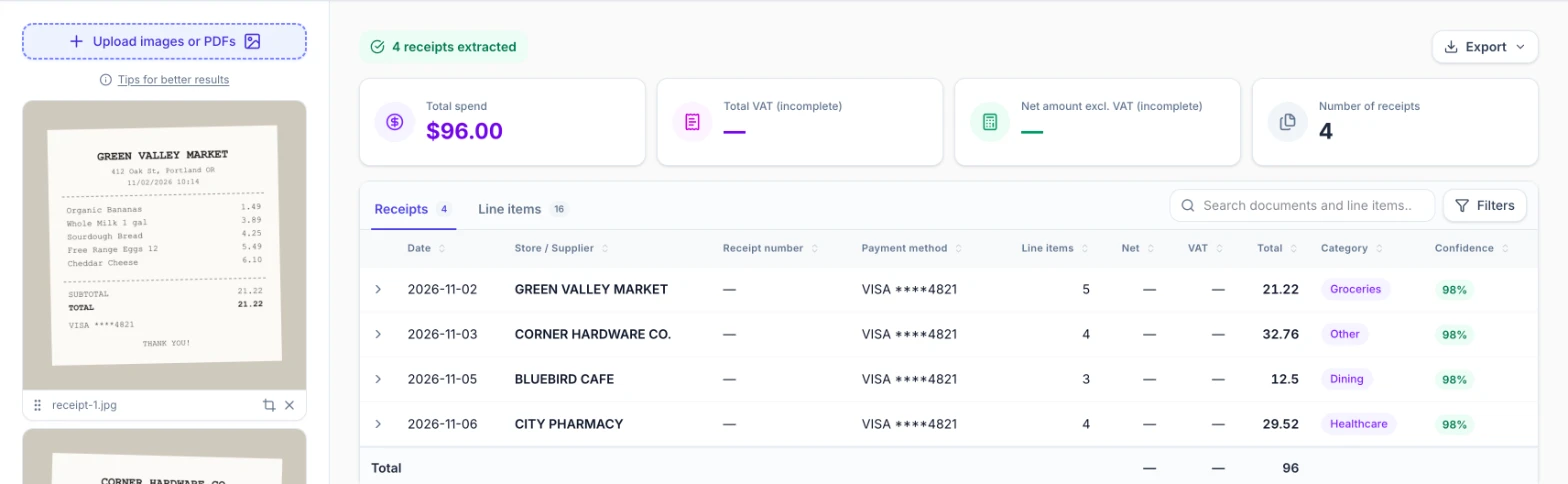
✓ 4 of 4 photos in under a minute · 16 rows · totals matchExport .xlsx
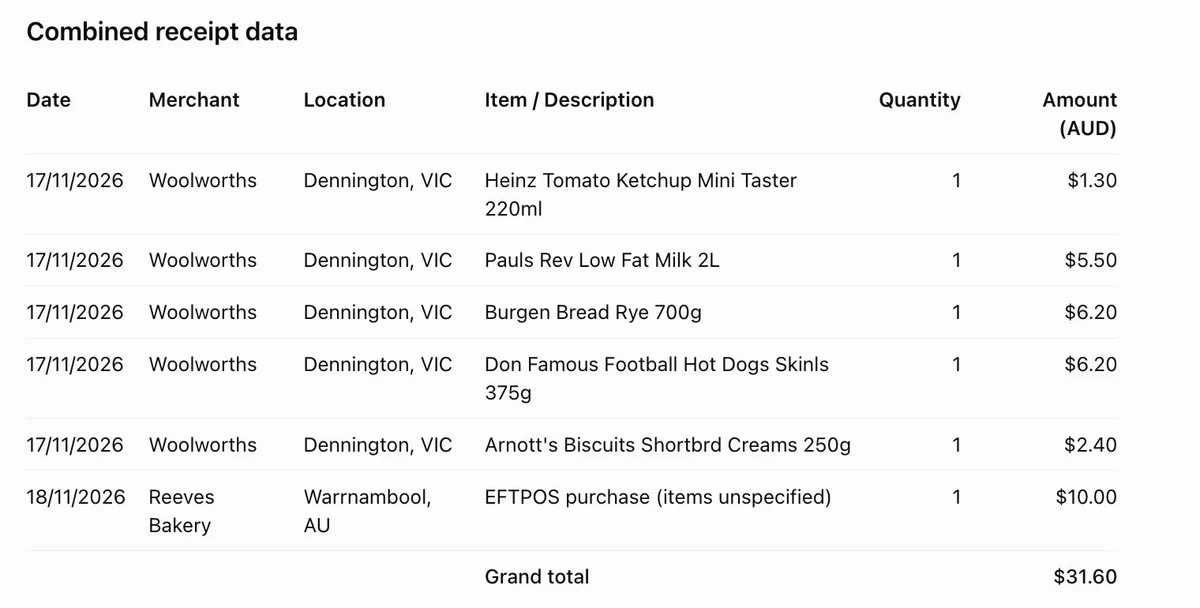
Readable table in the chat · copy it by hand · no .xlsx file in the answer
Which one should you choose?
Best for batches
Choose Extractify if…
- You have 5, 50 or 500 files to process, not one
- You want results fast, without prompting back and forth
- You only need one table from a busy screenshot (crop it in one click)
- You need the same columns every time, in the same order
- You want a real .xlsx or CSV, ready to open
- You work with PDFs, shelf photos, app screenshots or statements
- You want to check and edit rows before exporting
Best for one-offs
Choose ChatGPT if…
- You have a single image and need a quick answer
- You want to ask questions about the content, not just extract it
- You need a summary, a translation or a rewrite
- You already pay for ChatGPT and volume is very low
Turning 30 product screenshots into one price list
Extractify
3 steps · about 2 min- 1Drop all your images or PDFs at once
- 2Pick your columns, or let Extractify detect them
- 3Check each row against your images, shown side by side, then export
ChatGPT
6 steps · repeated per batch- 1Open a chat and upload a few files
- 2Write a prompt describing the columns you want
- 3Check the table, ask again for missing rows
- 4Repeat for the next files, in a new message
- 5Copy each answer into Excel
- 6Fix columns that changed between answers
Feature-by-feature comparison
| Feature | Extractify | ChatGPT |
|---|---|---|
| One image, one quick answer | Upload and extract in seconds | Paste and ask |
| Batch of files in one go | Up to 100 files per extraction | A few files per message, one chat at a time |
| Speed on a batch | Files processed in parallel, 4 photos in under a minute | One reply at a time, plus follow-up prompts |
| Same columns every time | Pick your columns once, reused on every file | Depends on the prompt, can drift between chats |
| Native Excel / CSV export | One-click .xlsx and CSV | Generated file link, not always available |
| Multi-page PDFs | Every page becomes rows in one table | Long PDFs are often summarized or cut short |
| Spot mistakes against the source | Your images stay on the left, the editable table on the right | Scroll back up the chat to compare, then ask again |
| Keep only part of an image | Built-in crop before extracting | Describe the area in your prompt, or crop elsewhere first |
| Ask open questions about the content | Focused on extraction | Its core strength |
| Summaries, translation, rewriting | Not what we do | Excellent |
| Free plan | 50 pages / month | Limited uploads on the free tier |
| Paid plan | From $9 / month | Plus $20, Pro from $100 / month |
One file vs one hundred: the batch gap
ChatGPT treats every file as a new conversation. With 40 screenshots you end up copy-pasting 40 answers, fixing columns by hand, and merging them yourself. Threads on the OpenAI community forum describe the same problem with image tables inside PDFs. Extractify takes the whole batch, processes several files at the same time, applies the same columns to every file, and gives you one merged table. In our test, 4 photos were done in under a minute.
The Excel export that isn’t always there
ChatGPT can generate a spreadsheet, but the result depends on the session: sometimes a download link, sometimes a markdown table you have to paste and reformat. OpenAI’s own data analysis guide warns that it may not reliably extract exact values from image-based tables or scanned files. Extractify always ends in a real .xlsx or CSV with proper numbers and dates. See how it works on image to Excel.
Where ChatGPT is genuinely better
If you want to understand a document (“what is this invoice charging me for?”, “summarize this report”, “translate this menu”), ChatGPT is the better tool. Extractify doesn’t try to chat. It turns visuals into rows and columns.
Pricing side by side
Extractify
All plans- Free50 pages / month · 15 per batch$0
- Starter200 pages / month · 30 per batch$9/mo
- Growth600 pages / month · 100 per batch$19/mo
- Business2,000 pages / month · 100 per batch$49/mo
ChatGPT
Official pricing- FreeLimited messages with uploads$0
- PlusAdvanced reasoning, expanded uploads$20/mo
- ProThree usage tiers, maximum limitsfrom $100/mo
ChatGPT US prices from chatgpt.com/pricing, November 2026. Prices may change.
FAQ
Can ChatGPT convert an image to Excel?
+
Yes, for a single image it can often produce a table and sometimes a downloadable file. Results vary between sessions, and you usually need to clean the columns before using them.
Is Extractify better than ChatGPT for extracting tables?
+
For batches and recurring work, yes: same columns every time, one merged table, and a native Excel or CSV export. For one-off questions about a document, ChatGPT is more flexible.
Can ChatGPT merge data from many files into one spreadsheet?
+
Only partly. You can upload a few files per message, but merging and keeping consistent columns is mostly manual. Extractify merges every file of a batch into one table. If you also use Claude for this, see Extractify vs Claude.
Does Extractify work with PDFs?
+
Yes. Multi-page PDFs, scans, photos and screenshots are all supported, and each page becomes rows in the same table. Our guide on extracting tables from PDFs walks through it.
How do I check that the extracted data is correct?
+
Once the extraction is done, Extractify keeps your images on the left and the table on the right, so you can compare each row with its source and fix a cell in place. In a chat, the files and the answer are far apart, which makes mistakes easier to miss.
Is there a free plan?
+
Yes, Extractify has 50 free pages a month, no credit card required.
Got more than one file? Try Extractify free.
Drop your images or PDFs, pick your columns, export to Excel. 50 free pages a month, no credit card.
Extract my files for free