Turn photos, screenshots, and PDFs into tables
Extract rows and columns from receipts, documents, shelf images, charts... Then review, edit, and export to CSV or Excel in seconds.

Tell Extractify what to extract
Bulk Image Uploads
Upload many files at once and process them in one flow.
AI-Powered Extraction
Extract product names, counts, prices, and more automatically.
Editable Structured Tables
Review and edit extracted rows before exporting.
How Extractify works
- 📷Step 1
Upload photos, PDFs or screenshots — shelves, documents, receipts, trading cards, or any scene with readable information.
- 🔍Step 2
Extractify reads text, numbers, and layout, and turns them into structured columns.
- 📊Step 3
Review and edit rows in a clean table.
- 📥Step 4
Export to CSV or Excel, or copy the data straight into your tools.
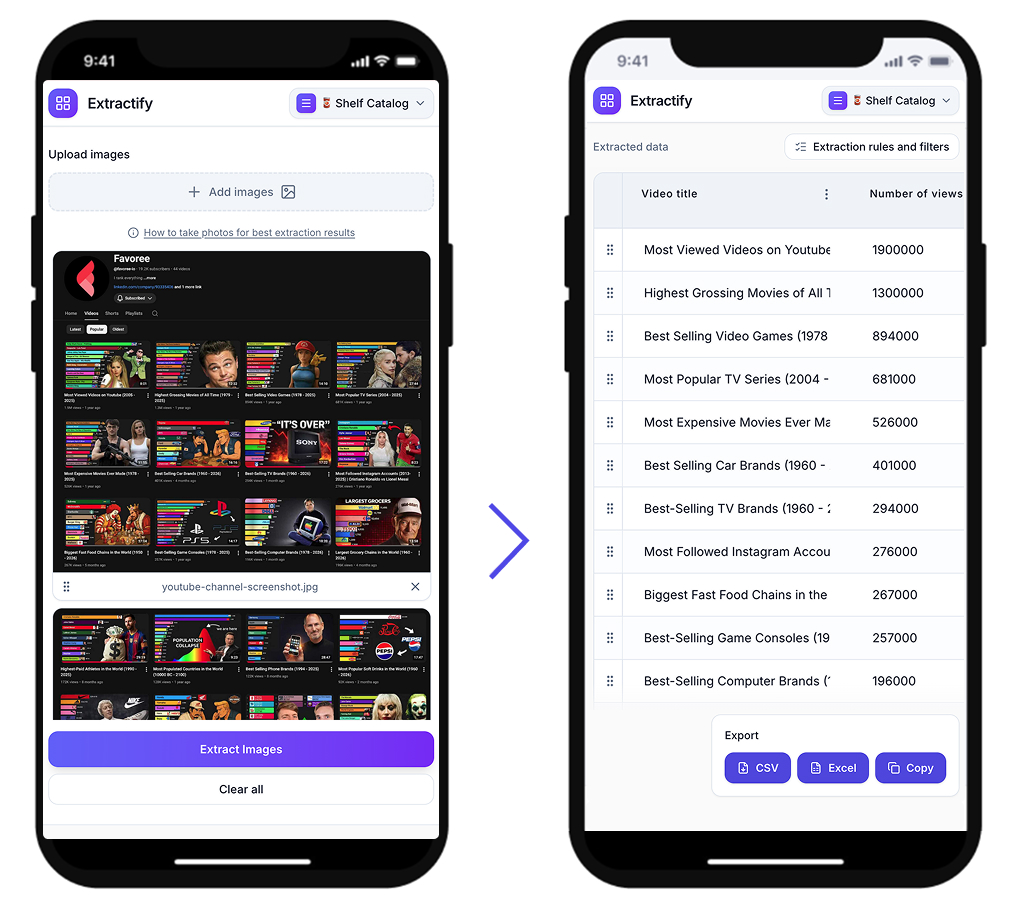
Review and edit extracted data before export
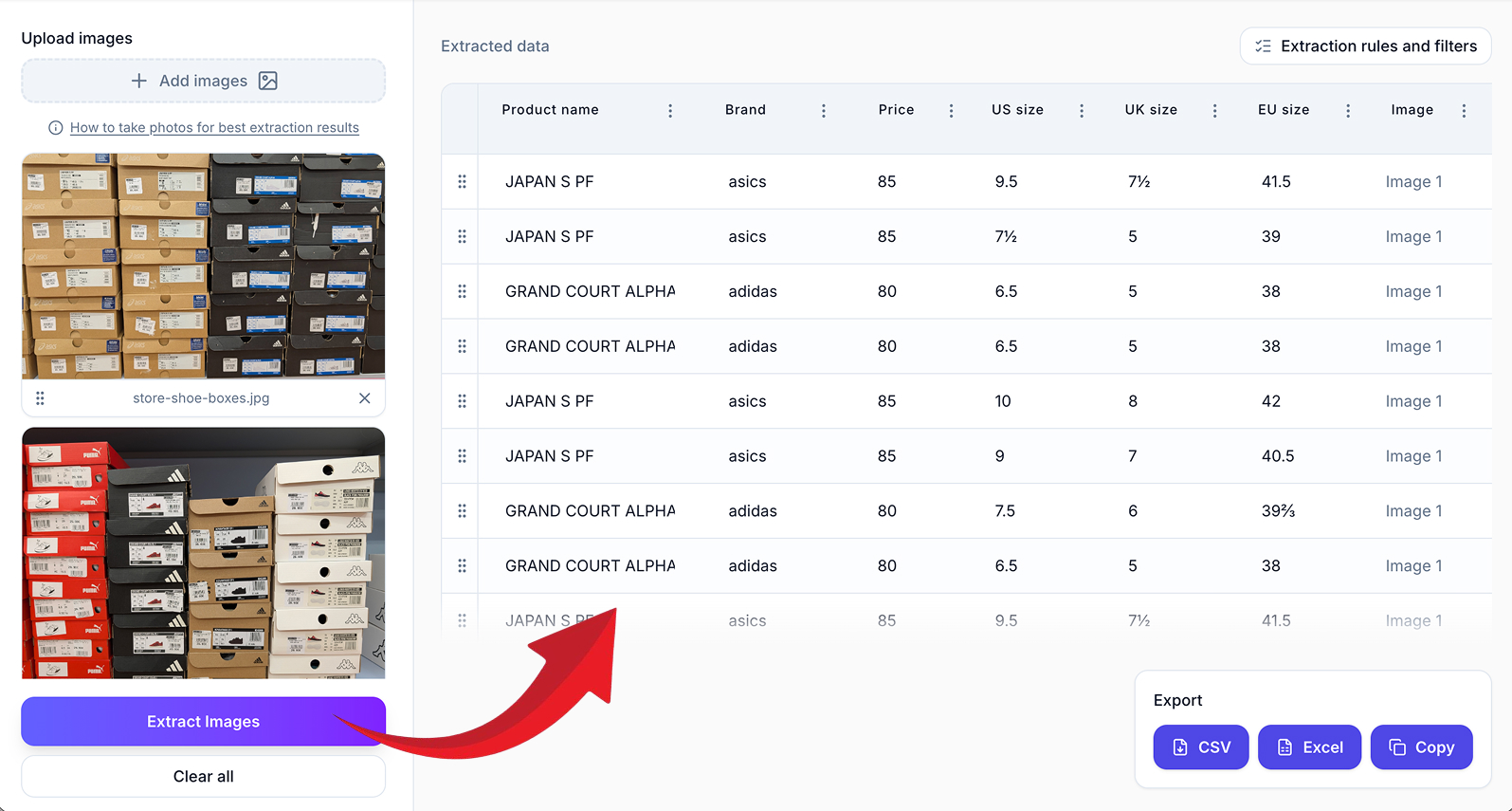
Upload a photo or screenshot and automatically pull out structured data such as:
- Names, titles, and labels
- Quantities, counts, and units
- Prices, amounts, and currencies
- IDs, SKUs, barcodes, and reference codes
- Dates, categories, and tags (when visible)
- Locations or positions in the image
- Any other field — add a column with the name you want
Export instantly to Excel or CSV.
Choose a workflow
Extract structured data from screenshots, receipts, shelves, reports, charts, and more.
Receipt Extraction
Extract merchant details, line items, VAT, and totals from receipt images.
Invoice Extraction
Capture invoice headers, line items, taxes, and totals into structured rows.
Bank Statements
Extract transactions, balances, and statement periods from statement files.
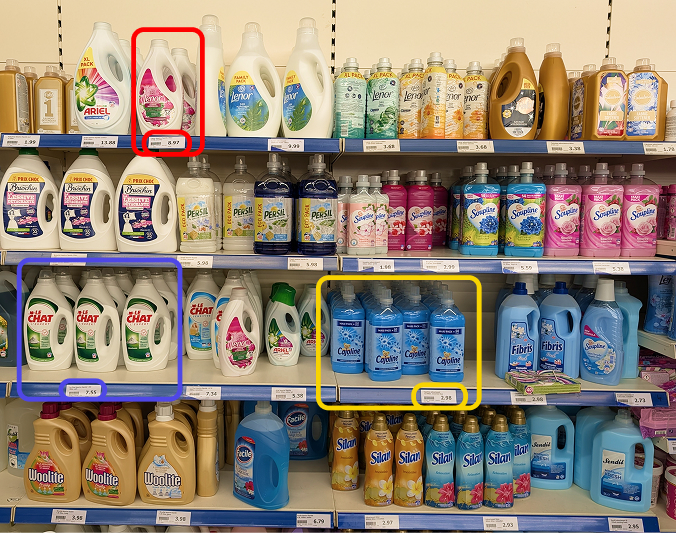
Shelf Catalog
Capture product names, prices, and shelf data from store photos.
Warehouse Stock Check
Verify stock quantities from warehouse images in seconds.
Shelf Inventory
Count visible units and organize shelf inventory by location or category.
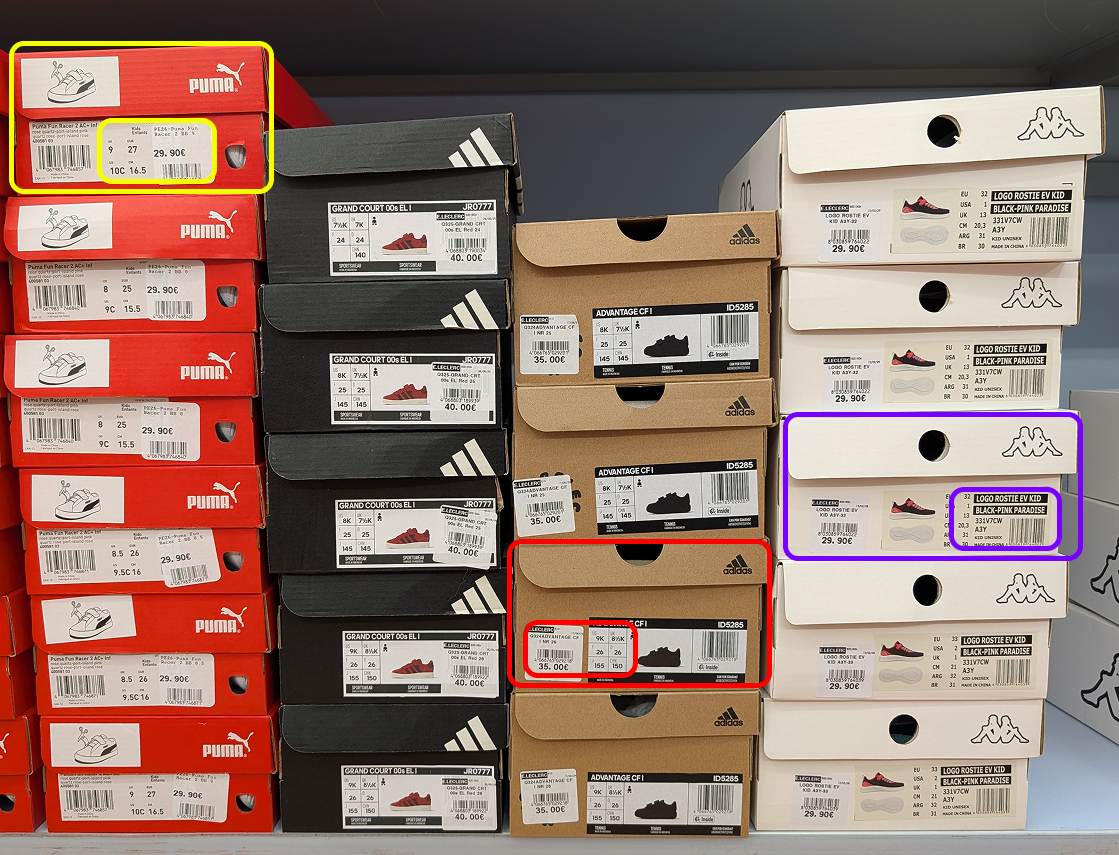
Shoe Inventory
Track boxed inventory from stockroom or shelf photos without manual entry.
Share of Shelf
Measure brand facings and shelf area from retail photos with editable blocks.
Get accurate results every time
Need a specific extraction workflow? We can help you create a custom template.